

What VPN Game Mode is
Why use it
How to turn on Game Mode
From the VPN page
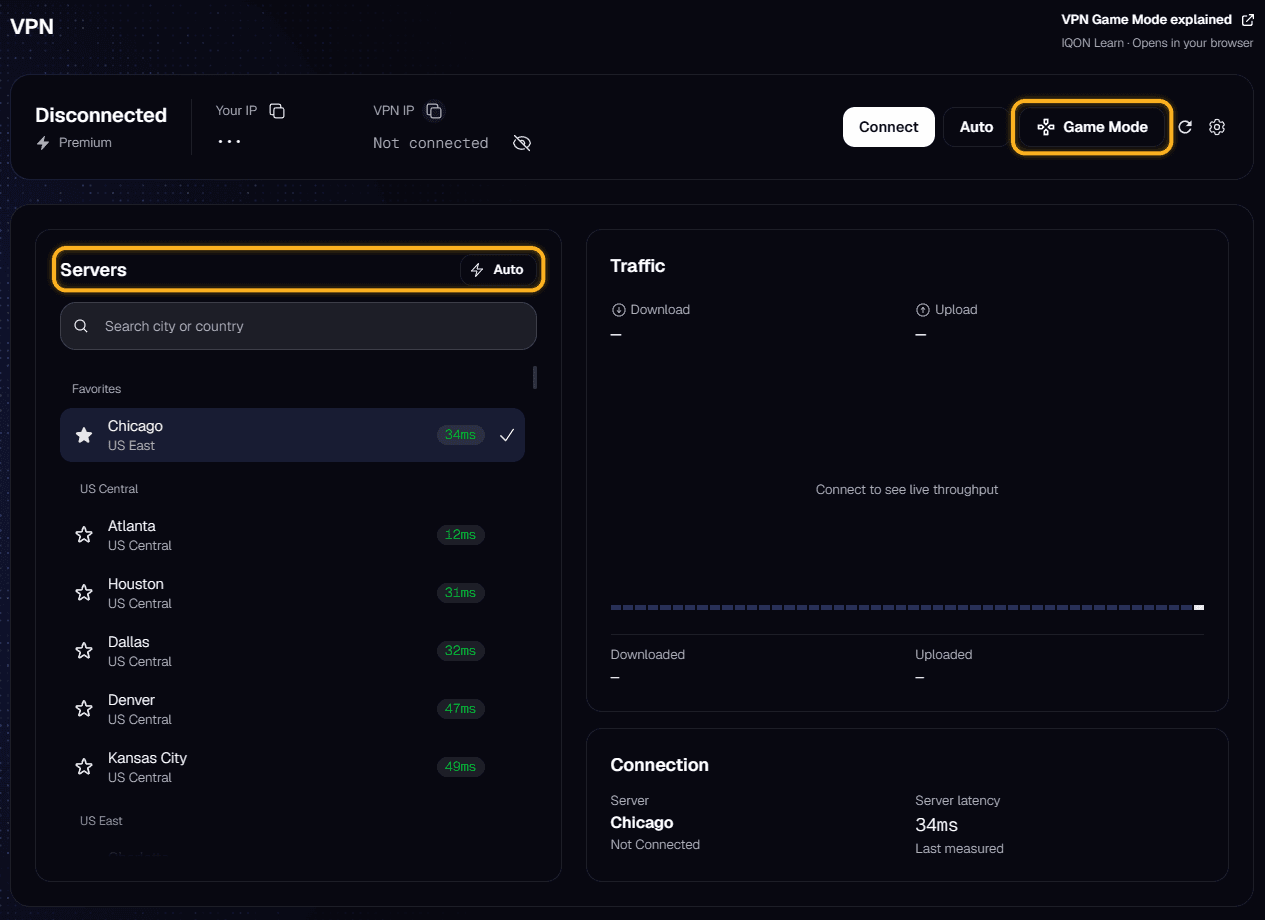
- Open VPN in IQON.
- Select "Game Mode" next to "Connect" and "Auto".
- Choose an installed game. A check mark shows the active game.
- Pick a server from the "Servers" list, or select "Auto" to let IQON choose one.
- Select "Connect". When the connection is up, the "Game Mode: [game name]" badge confirms that Game Mode is active.
If you're already connected when you choose a game, IQON saves the change and shows "Changes will apply on the next VPN reconnect." Disconnect and connect again to apply it.
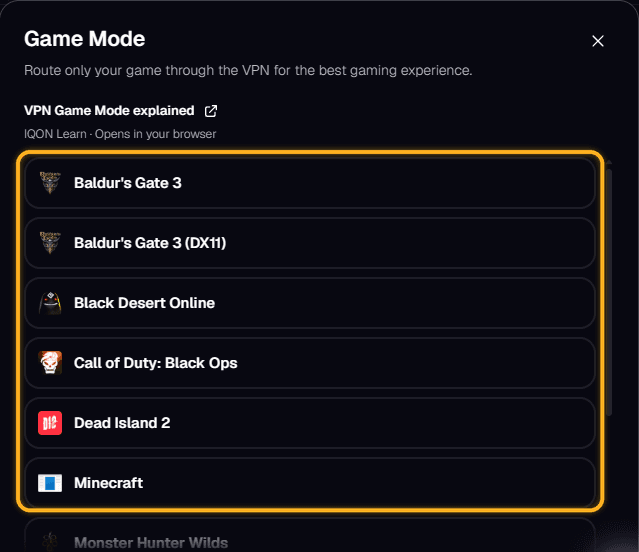
From the VPN tray
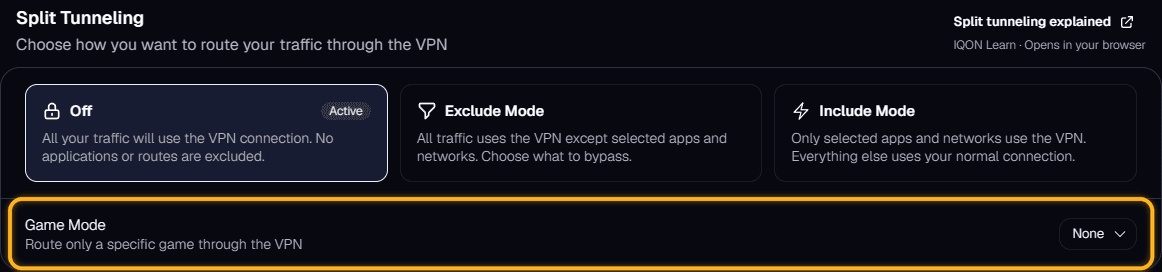
From VPN settings
Choosing a server
- "Auto" lets IQON pick the best server for you.
- "Game Mode Recommended" appears at the top of the list for some games. These servers are chosen for that game, but you can still pick any other server.
- Favorites and the rest of the list work as usual. Select the refresh button next to the gear icon if the ping numbers look out of date.
Turning Game Mode off or changing the rules
- "Off" sends all of your traffic through the VPN.
- "Exclude Mode" sends everything through the VPN except the apps and networks you leave out.
- "Include Mode" sends only the apps and networks you select through the VPN. Use it when you want more than one app on the VPN.

