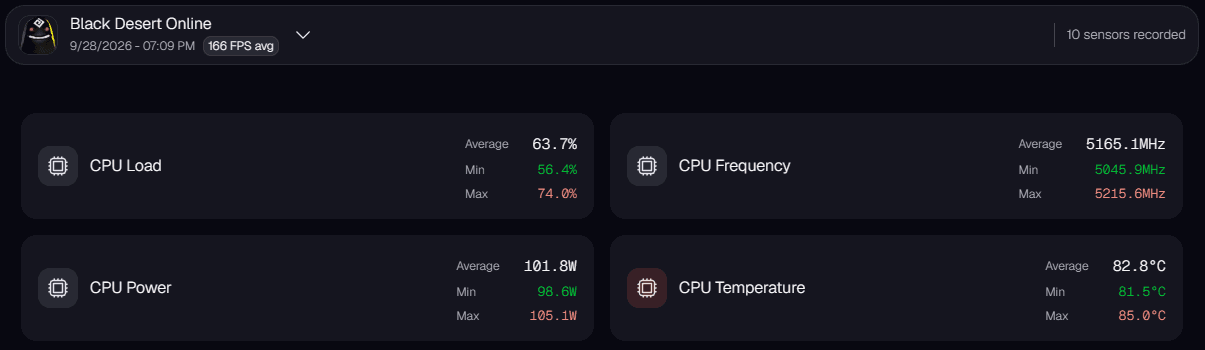
An overview of the Frame Analyzer
IQON's automatic optimizations can help resolve many of these issues with one click.
Learn more
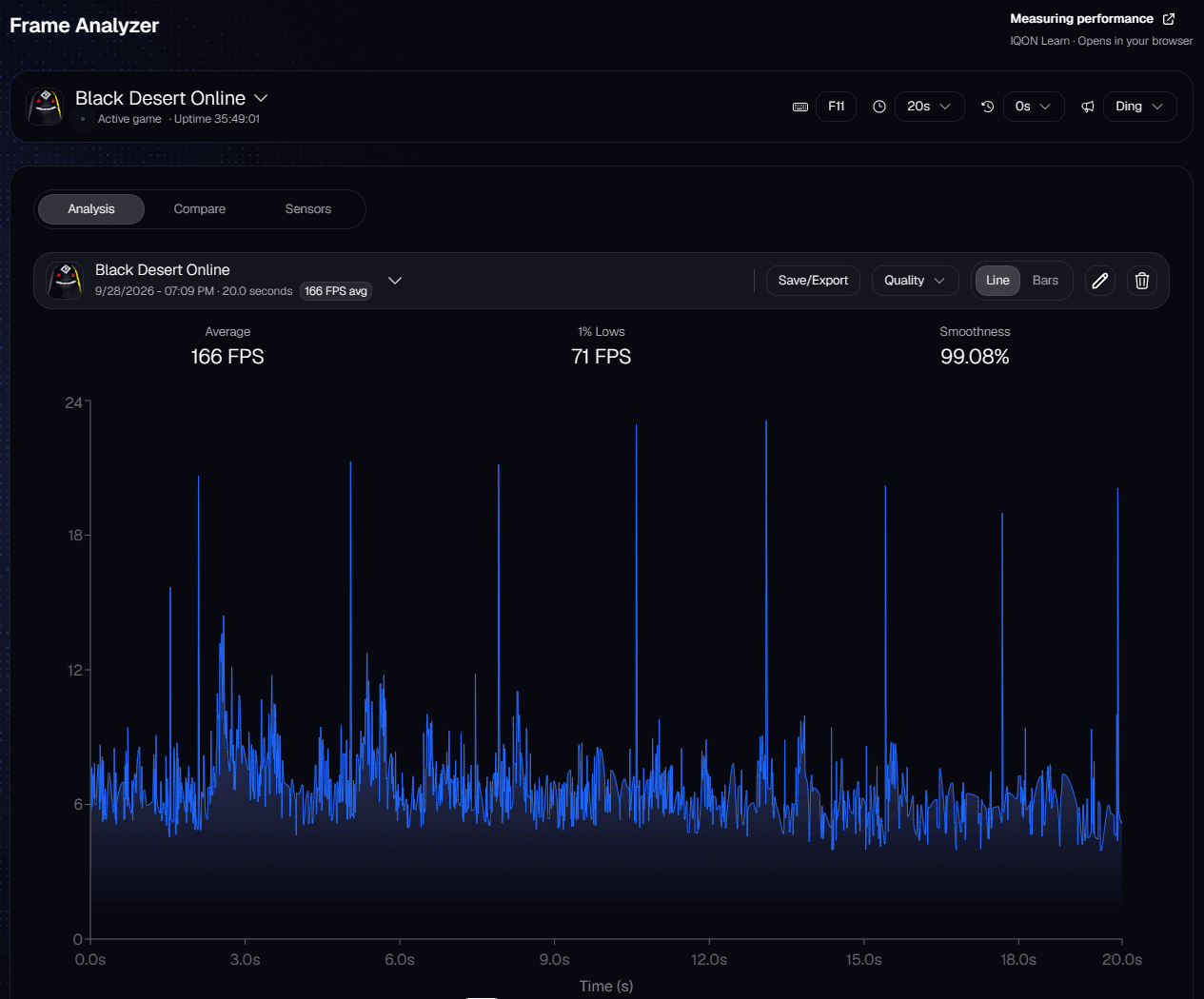
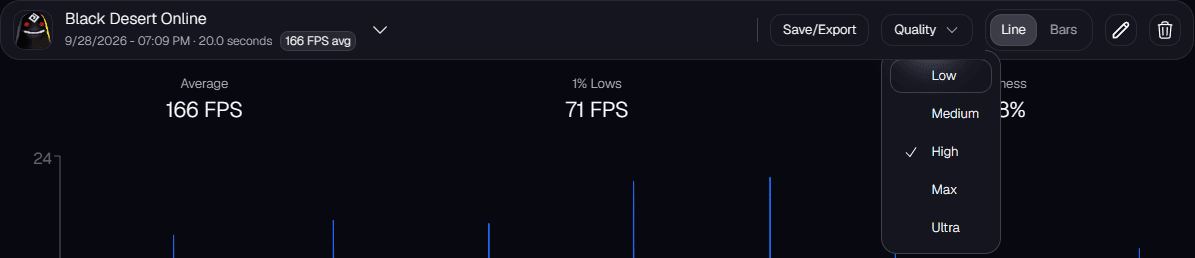
Each recording opens in the Analysis tab. Use the menu next to the recording name to switch between recordings, "Save/Export" to save the data, and the pencil and trash icons to rename or delete a recording. You can show the chart as a line or as bars.
Zoom in and change the chart quality
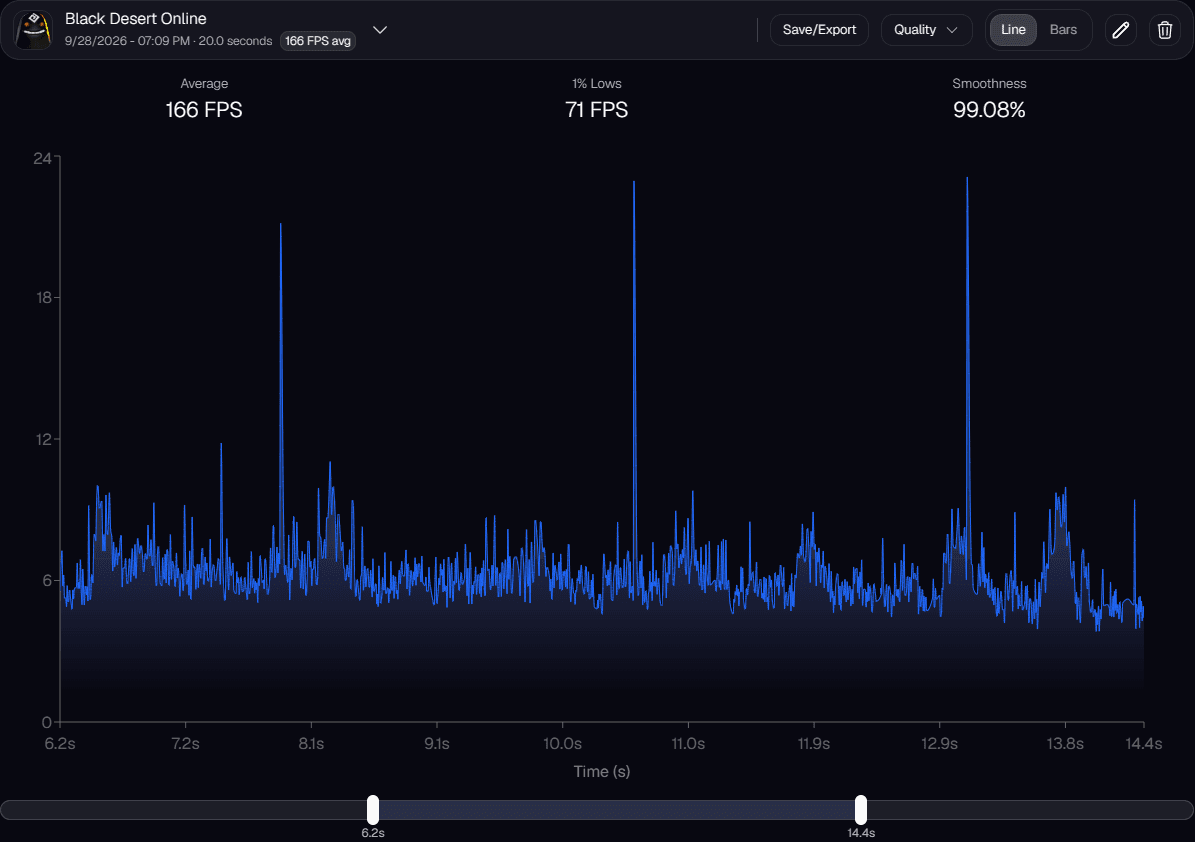
Use the "Quality" menu to choose how many points the chart draws: Low (250), Medium (500), High (1,000), Max (2,000), or Ultra (5,000). High is the default. Higher settings draw more of the individual frames, so short spikes are easier to spot. The "Quality" menu appears while the chart is set to Line.
Frame time vs frames per second (FPS)
What FPS can hide
What metrics are available?
| Metric | Fps | Frametime |
|---|---|---|
| Avg | Average FPS → throughput, but hides spikes | Average frame time in ms → overall smoothness |
| P99 | 1% lowest FPS → the “1% low” FPS most noticeable to players | 99th percentile frame time → 1% of frames are slowest → shows stutter |
| 1% avg | Average of lowest 1% FPS → shows the 1% low FPS more clearly than raw P1 | Average of slowest 1% frames → captures stutter without extreme outliers |
| Min/Max | Highest / lowest FPS → frames per second extremes | Fastest / slowest frame time → best/worst smoothness |
Tips for using the tool
Other features
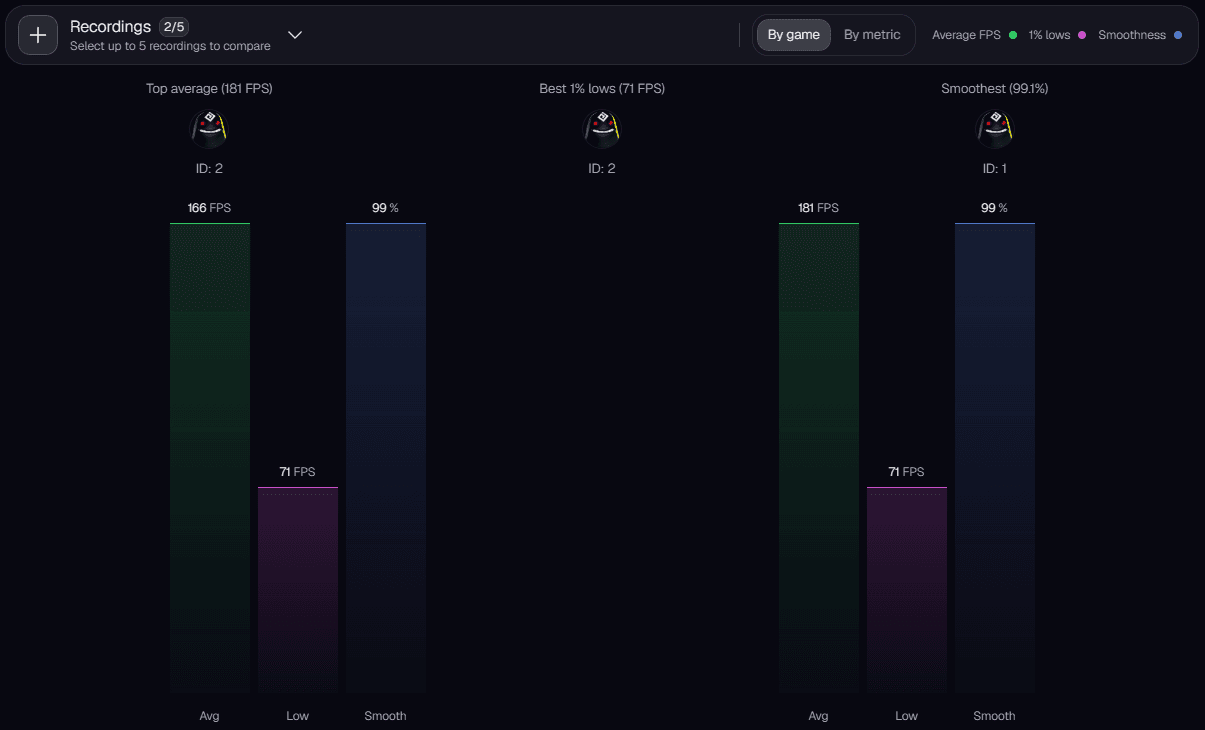
The Compare tab lets you compare up to five recordings side by side, which is useful for checking results before and after an optimization. You can group the comparison by game or by metric.