
TrademarkTrademark
Services
Learn
Company
IQON App
October 8·Updated October 8

Software Settings

TL;DR
Open Settings > Software to choose how IQON starts, uses the system tray, and runs its background service. You can also change the language, temperature units, and update channel, or export a diagnostic file.
Open Settings > Software to manage how IQON starts and runs on your PC.
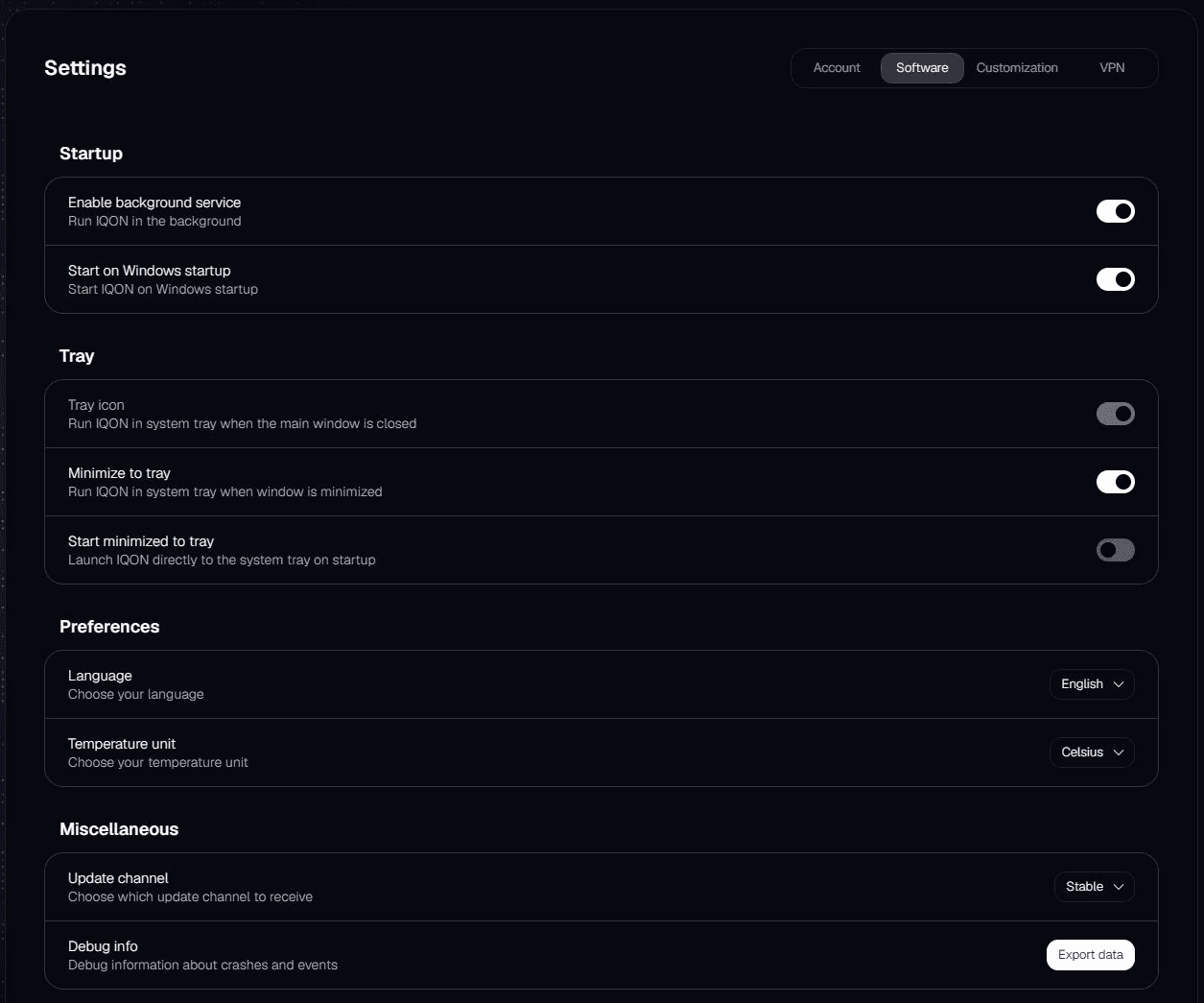
IQON native Software settings with startup, tray, language, temperature unit, update channel, and debug export controls.
Turn on "Start on Windows startup" to launch IQON when you sign in. The "Enable background service" option controls how the Windows service runs. When it is on, the service starts automatically and can keep running after you close IQON. When it is off, the service uses manual startup and stops when you close the app.Turning off "Enable background service" does not stop the service while IQON is still open. You cannot change this option while the service is disconnected.
  • "Tray icon" keeps IQON running in the system tray when you close its window.
  • "Minimize to tray" sends IQON to the system tray when you minimize its window.
  • "Start minimized to tray" makes IQON open directly in the system tray.
To have IQON start in the system tray when you sign in, turn on "Start on Windows startup", "Tray icon", and "Start minimized to tray"."Minimize to tray" needs "Tray icon" to stay enabled, so it prevents you from turning that option off. To disable "Tray icon", turn off "Minimize to tray" first. "Start minimized to tray" is also unavailable when "Tray icon" is off.Use "Language" to choose a language or follow your Windows language setting. Use "Temperature unit" to choose Celsius or Fahrenheit."Update channel" determines which releases IQON checks for. The channels you can choose depend on your account access. Choose "Stable" for everyday use. Testing channels let you receive releases before they reach Stable.Under "Debug info", select "Export data" and choose where to save IQON-debug.bin. This saves a diagnostic file on your PC without sending it to support. If support asks for the file, send it along with a description of the problem and when it happened.