TrademarkTrademark
Servizi
Scopri
Azienda
IQON App
August 23·Updated August 24

VPN Game Mode

TL;DR
VPN Game Mode routes only the game you pick through the IQON VPN. Discord, browsers, downloads, and everything else stay on your normal connection. Open Game Mode on the VPN screen, choose an installed game, pick a server, and connect. Some titles also get a Game Mode Recommended server list.
Game Mode is a one-click VPN preset: it sends only your selected game through the IQON VPN and leaves every other app on your normal internet connection. When you pick a game, IQON turns on split tunneling in Include mode, adds that game as the only included app, and clears any extra network routes you added by hand. While it is active, the VPN screen and the VPN tray show a Game Mode: [game name] badge.This is IQON’s VPN Game Mode, not Windows Game Mode. Windows Game Mode is a separate Windows setting. IQON Game Mode only changes how VPN traffic is routed.A full-tunnel VPN sends every packet through the VPN server — the game, voice chat, your browser, and background downloads. Game Mode keeps the VPN hop on the game only.
  • Routing — Only the game uses the VPN path. Discord, browsers, launchers, and downloads stay on your ISP, so they do not share the tunnel with game packets.
  • Latency — Pick a VPN server close to the game’s region. Quick connect still shows ping for every server, and some titles get a Game Mode Recommended list at the top so the better-routed regions are easy to find.
  • Less setup — You do not have to build Include-mode rules by hand. Choosing the game applies the preset.
  • Open VPN in IQON.
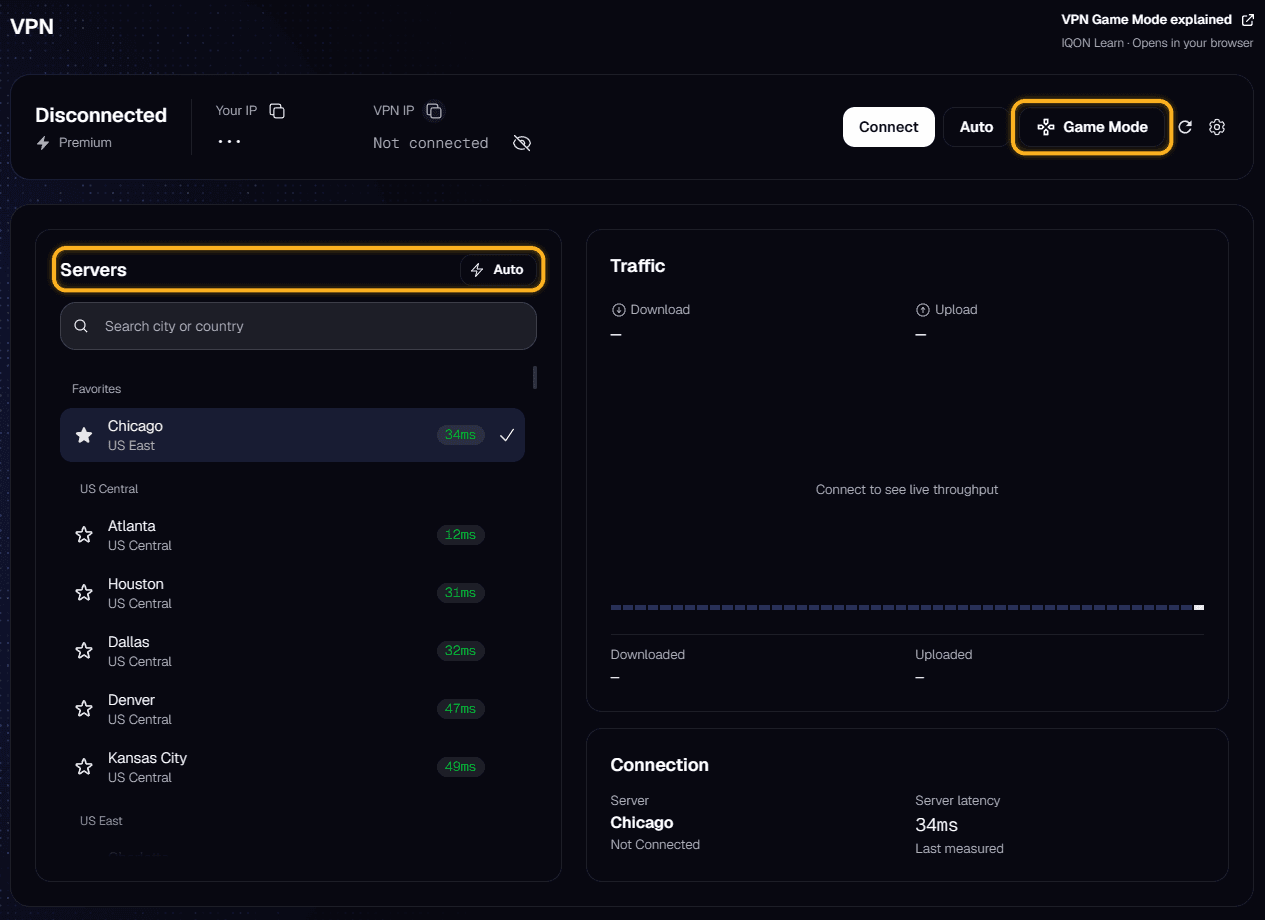
  • Click Game Mode (gamepad icon) next to Connect and Auto.
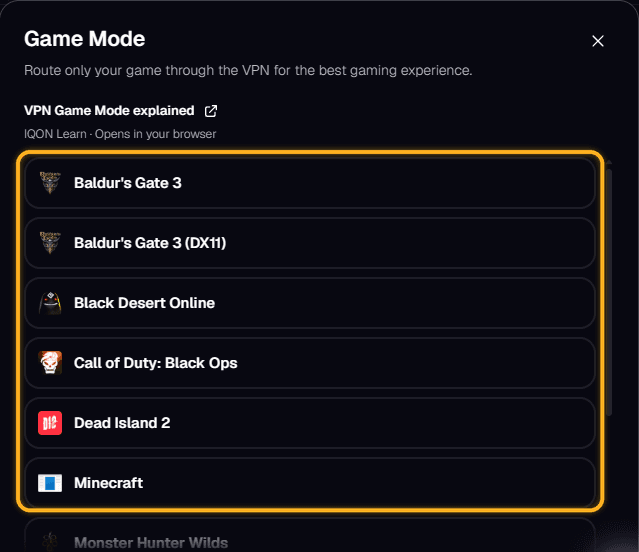
  • Select an installed game. A check mark marks the active game.
  • If the VPN is disconnected, Game Mode applies right away. If you are already connected, IQON saves the change and shows “Changes will apply on the next VPN reconnect.” Disconnect and Connect again.
  • In Quick connect, pick Automatic, a Game Mode Recommended server (when shown), a favorite, or any other server.
  • Click Connect. When the tunnel is up, the Game Mode: [game name] badge confirms the preset is active.
If VPN tray icon is on in Settings → VPN, the tray window has a gamepad button. It opens the main VPN screen with the Game Mode dialog already open. The tray also shows the Game Mode: [game name] badge while the preset is active.Open Settings → VPN (gear icon on the VPN screen), or use the same gear in the tray.
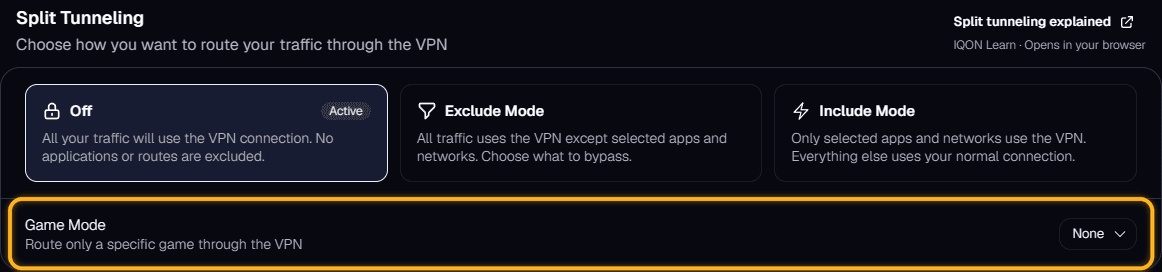
  • Under Split Tunneling, pick a game card labeled [game] only. The description reads: “Only [game] will use the VPN. All other traffic uses your normal connection.”
  • Click Apply Changes if the VPN is disconnected, or Save Changes if it is connected. A connected session still needs a reconnect before the new routing takes effect.
Game Mode does not lock you to one server. After the preset is on, use Quick connect the same way you always do:
  • Automatic — IQON picks the best server from the current list.
  • Game Mode Recommended — Shown for some games at the top of Quick connect. These are curated regions for that title. You can still pick any other server.
  • Favorites and the full country list — Same as a normal VPN session. Use Refresh server pings if the numbers look stale.
Lower ping is usually better for the game, but the recommended list exists because the lowest ping to you is not always the best path to the game’s own servers.Open Settings → VPN and choose a different Split Tunneling card:
  • Off — All traffic uses the VPN. No apps or routes are excluded.
  • Exclude Mode — Everything uses the VPN except the apps and networks you leave out.
  • Include Mode — Only the apps and networks you select use the VPN. Use this when you want more than one app on the tunnel.
While a game preset is active, Settings → VPN also offers Advanced mode (“Manually configure applications and network routes”). Adding apps or routes there leaves the Game Mode preset — the VPN screen then shows a Split Tunnel badge instead of Game Mode.Apply or save, then reconnect if the VPN is already up. For a full walkthrough of Include, Exclude, app routes, IP routes, and domain routes, see VPN Split Tunneling Explained.No. Windows Game Mode is a Windows performance setting. IQON VPN Game Mode only decides which apps go through the VPN.No. Only the selected game uses the VPN. If you want everything on the tunnel, set Split Tunneling to Off.Game Mode lists games IQON has discovered as installed. If the dialog shows “No games found,” the title is not in that list yet. You can still send it through the VPN from Settings → VPN: choose Include Mode, add the game executable under Applications, then Apply or Save Changes.If the VPN was already connected, the new routing waits for a reconnect. Disconnect, then Connect. The Game Mode badge appears only after the tunnel is up with split tunneling active.Recommended servers are only available for some games. You can still use Automatic, Favorites, or any server in the list. Use the refresh control if you want updated pings.VPN Game Mode is part of IQON VPN. If your plan does not include VPN access, the VPN screen shows an upgrade prompt instead of the Game Mode controls.