TrademarkTrademark
Servizi
Scopri
Azienda
IQON App
March 21·Updated October 8

Measuring performance with the Frame Analyzer

TL;DR
The Frame Analyzer records a game session and shows how smoothly frames reached your screen. Press F11 in game to record, then review FPS, frame times, and sensor data, or compare up to five recordings.
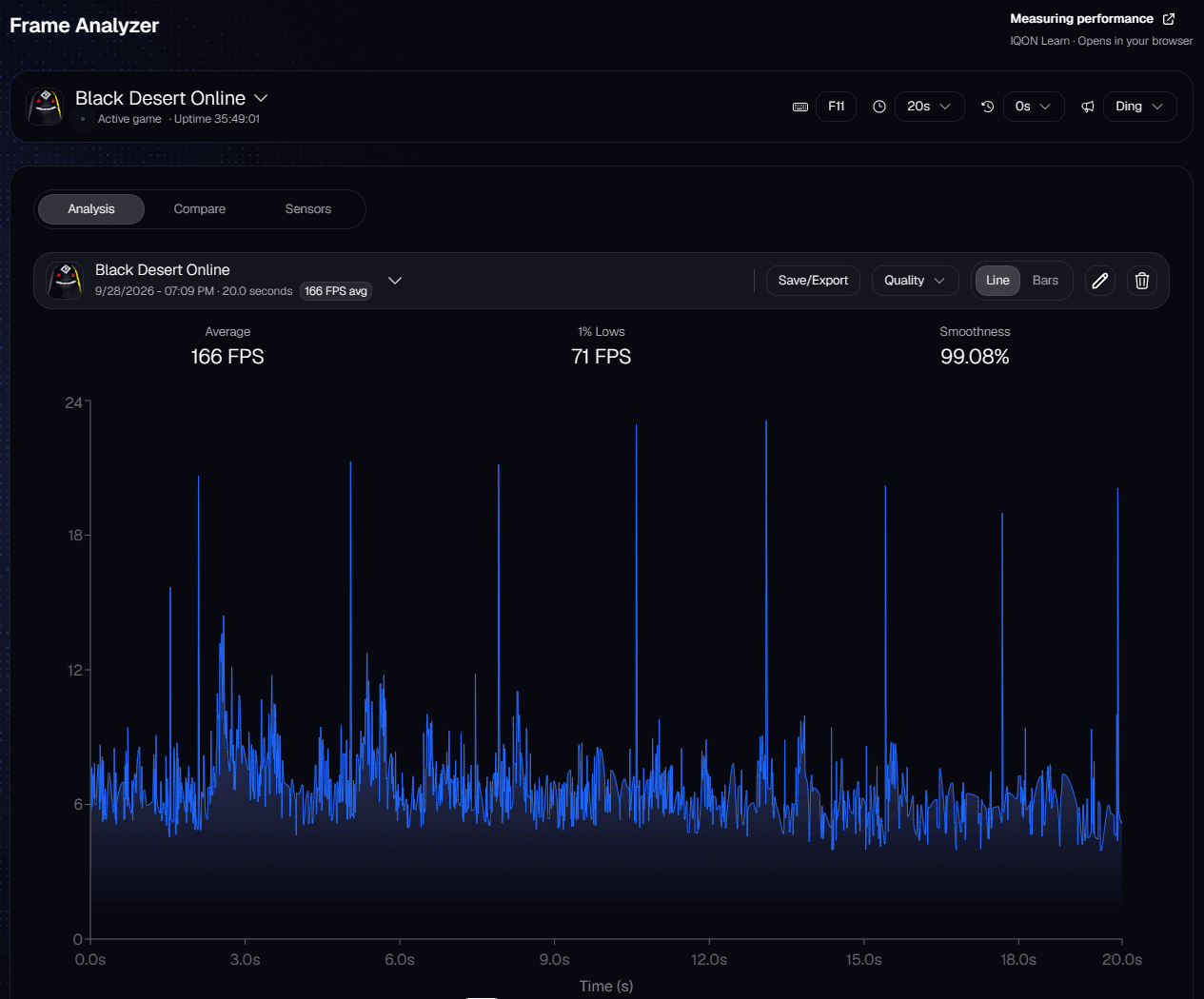
The Frame Analyzer records your game sessions and shows how smoothly each frame reached the screen. IQON uses PresentMon, a tool developed by Intel, to capture the frame data.Open Analyze to find it. The bar at the top shows the game IQON detected. Press the recording hotkey in game (F11 by default) to start a recording. Next to the hotkey, you can set how long each recording lasts, add a delay before it starts, and choose the sound IQON plays.
IQON's automatic optimizations can help resolve many of these issues with one click.
Learn more
IQON Frame Analyzer Analysis tab showing a 20-second Black Desert Online recording with average FPS, 1% lows, smoothness, and a frame time chart.
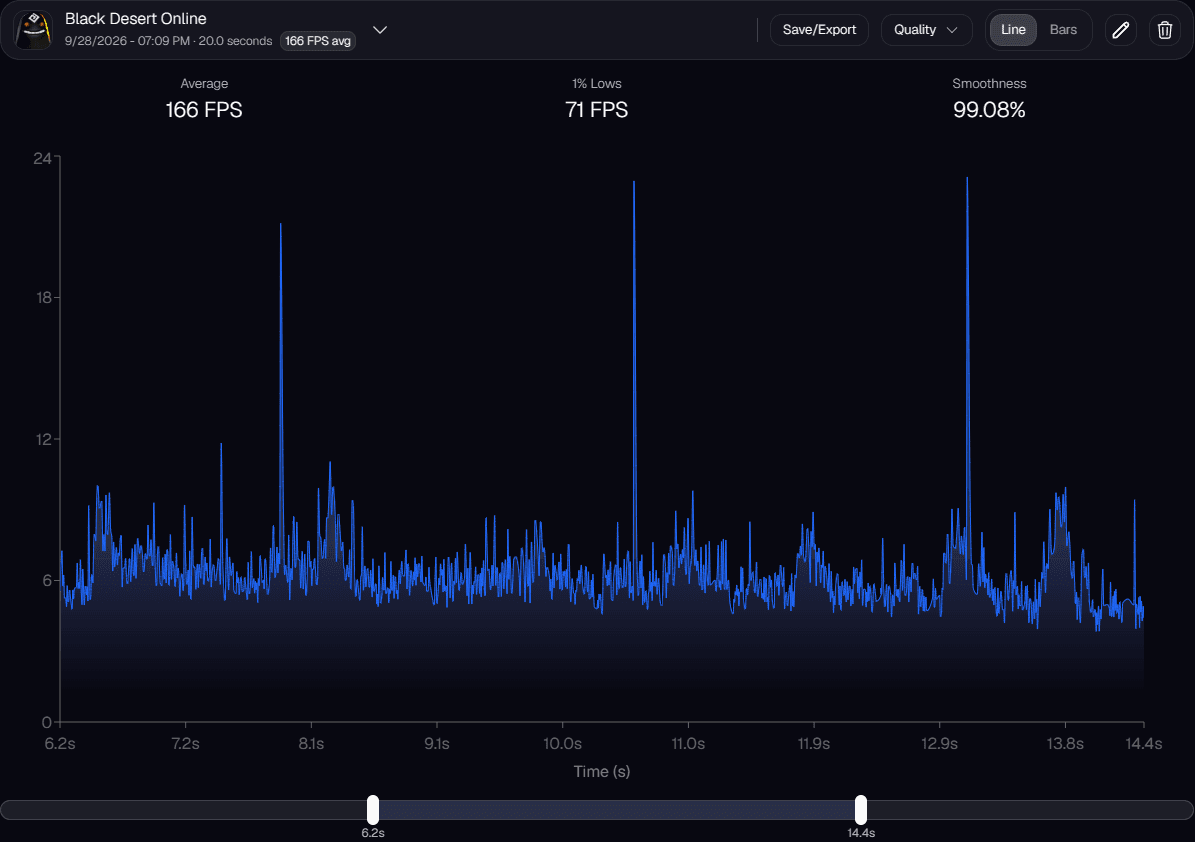
Each recording opens in the Analysis tab. Use the menu next to the recording name to switch between recordings, "Save/Export" to save the data, and the pencil and trash icons to rename or delete a recording. You can show the chart as a line or as bars.The line chart shows the frame time of each frame in the recording. To take a closer look at a stutter, point at that part of the chart and scroll up with your mouse wheel. Scroll down to zoom back out. The bar under the chart shows which part of the recording you're viewing. Drag it to move along the recording, or drag either end to widen or narrow the view.
IQON Frame Analyzer frame time chart zoomed in on part of a recording, with the time range bar below the chart.
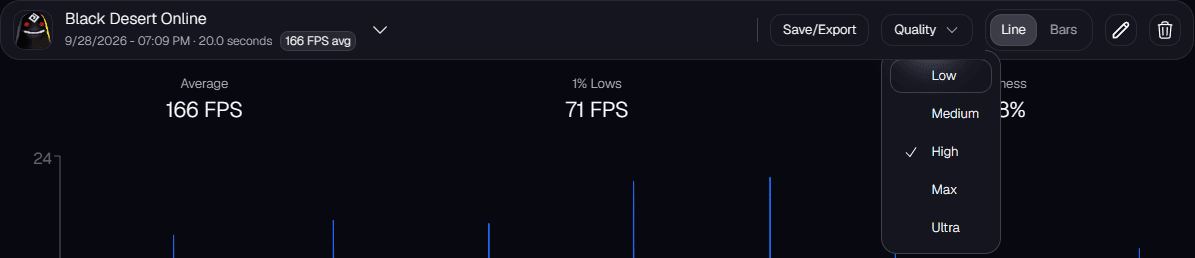
Use the "Quality" menu to choose how many points the chart draws: Low (250), Medium (500), High (1,000), Max (2,000), or Ultra (5,000). High is the default. Higher settings draw more of the individual frames, so short spikes are easier to spot. The "Quality" menu appears while the chart is set to Line.
IQON Frame Analyzer Quality menu showing Low, Medium, High, Max, and Ultra, with High selected.
These two terms are often used interchangeably, but they describe different things.FPS (frames per second) tells you how many frames appear each second. Frame time tells you how long each individual frame takes to appear, usually in milliseconds.They're closely related. If frames take longer to render, you see fewer of them each second, and if they render quickly, FPS goes up.FPS shows how much work gets done over time. Frame time shows how evenly that work is delivered, and that consistency matters more than most people expect. A steady stream of frames feels smooth even when it isn't especially fast. A locked 30 FPS with evenly spaced frames can feel smoother than 60 FPS that stutters now and then.FPS can hide problems that frame time makes obvious. Imagine most frames arrive quickly and evenly, but one frame takes much longer than the rest. An FPS counter averages everything together and still reports a high number.What you feel is that one late frame. The game shows a frame, the next one takes too long to render, and the display keeps showing the old frame while it waits. The result is a brief hitch or stutter.Frame time shows this as a spike right away. FPS smooths it into an average, which is why it often misses the problem.The Frame Analyzer shows both FPS and frame time statistics for each recording. The table below explains a few of the most useful ones. IQON also tracks more percentiles and averages for anyone who wants to dig into hitches and stutters in more detail.
MetricFpsFrametime
AvgAverage FPS → throughput, but hides spikesAverage frame time in ms → overall smoothness
P991% lowest FPS → the “1% low” FPS most noticeable to players99th percentile frame time → 1% of frames are slowest → shows stutter
1% avgAverage of lowest 1% FPS → shows the 1% low FPS more clearly than raw P1Average of slowest 1% frames → captures stutter without extreme outliers
Min/MaxHighest / lowest FPS → frames per second extremesFastest / slowest frame time → best/worst smoothness
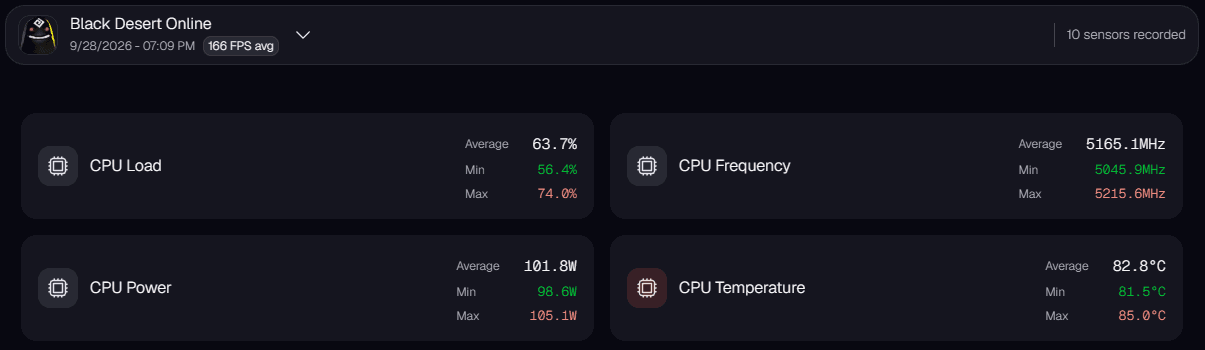
You'll get more useful results if you keep your recordings consistent. Small changes in what's on screen can have a big effect on performance.Record in the same place each time. Use the same area, camera angle, and activity, because comparing two runs only makes sense if the workload is similar. A busy town will give very different results from active combat.Avoid noisy situations when you want a clean comparison. Crowded hubs, random events, and background downloads add variation to your data, so save them for stress testing.Record for long enough. Very short recordings can miss occasional stutters, so a slightly longer recording gives you a more representative picture.Compare runs. The tool is most useful for checking results before and after a settings change, a driver update, or a hardware upgrade. Look at frame time spikes and consistency as well as average FPS.If something feels off in game, check frame time first. Spikes and irregular patterns usually point to the cause of stutter, even when FPS looks fine.The Sensors tab shows how your hardware behaved during the recording, such as CPU load, power, temperature, and frequency.
IQON Frame Analyzer Sensors tab showing CPU load, frequency, power, and temperature for a recording.
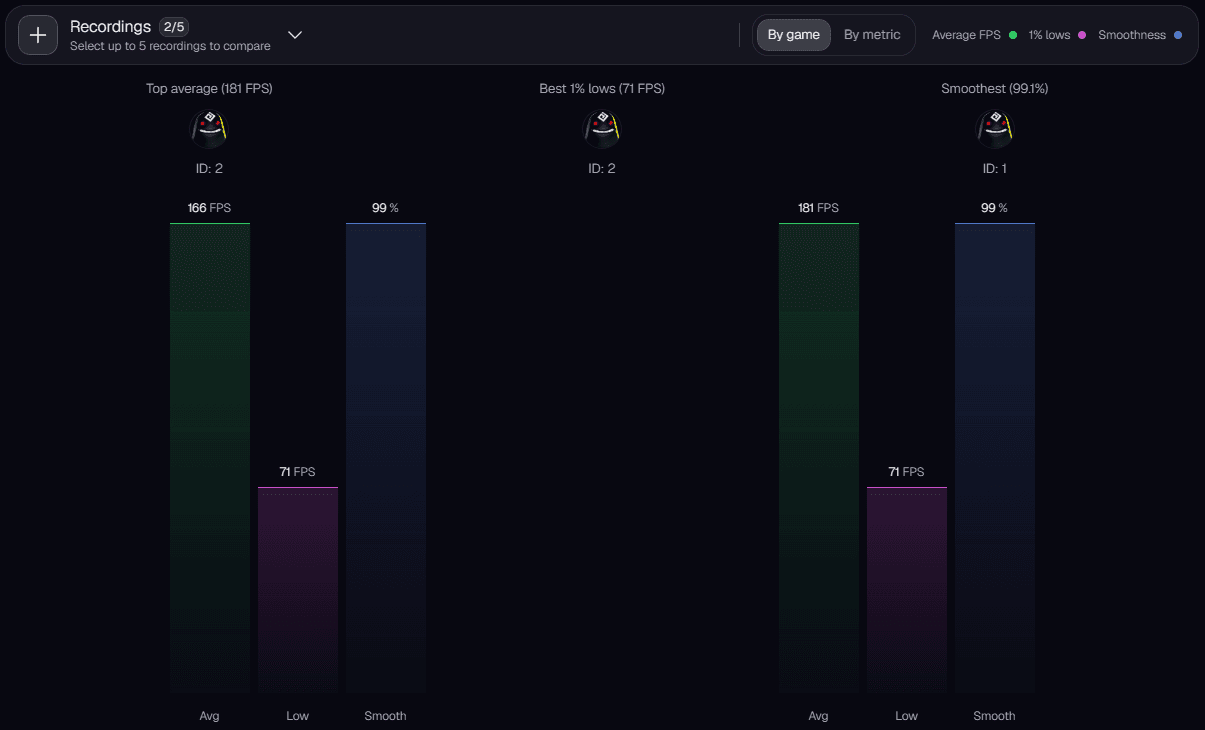
The Compare tab lets you compare up to five recordings side by side, which is useful for checking results before and after an optimization. You can group the comparison by game or by metric.
IQON Frame Analyzer Compare tab comparing two Black Desert Online recordings by average FPS, 1% lows, and smoothness.

Want IQON to Handle This Automatically?