TrademarkTrademark
Services
En savoir plus
Entreprise
IQON App
October 8·Updated October 8

Optimizer

TL;DR
Pick One-Click to run a preset right away, or Standard to review every Windows tweak, app, and service before anything changes. When it finishes, IQON walks you through restarting, turning on the Optimization Monitor, and setting up Live Boost.
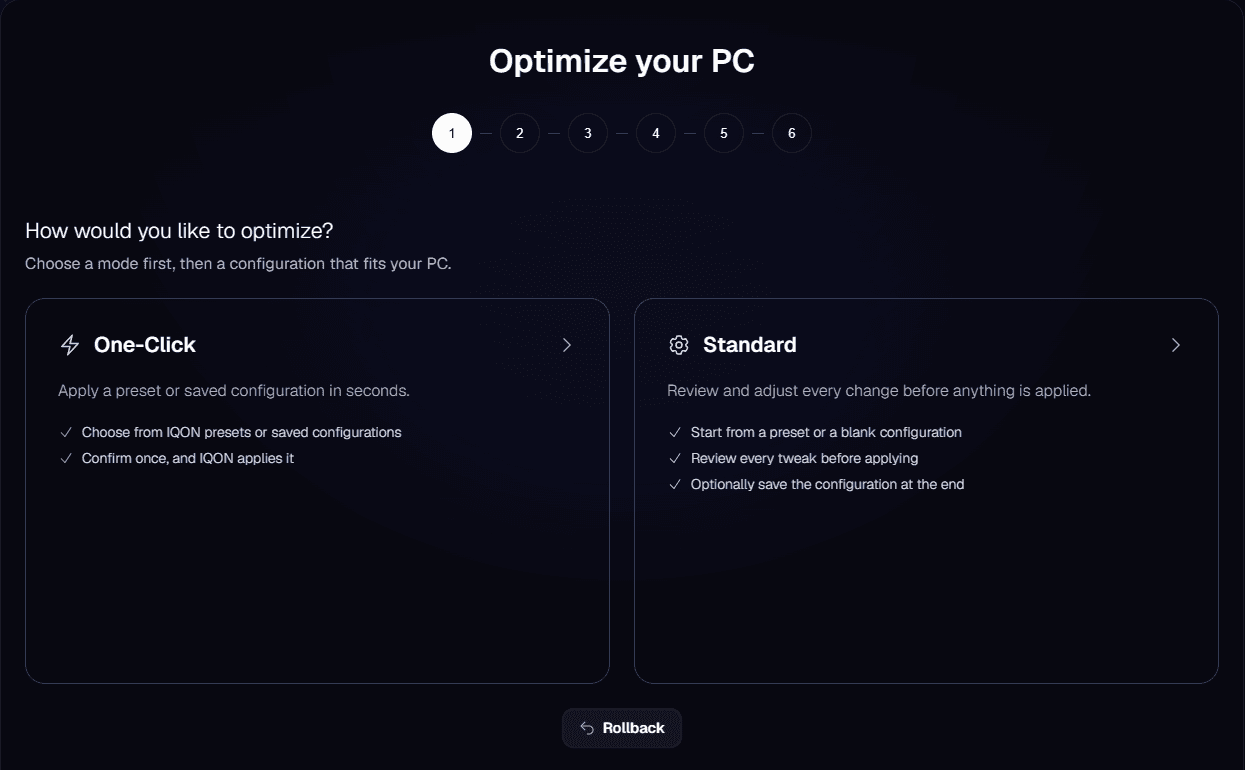
Open Optimize to change Windows settings and remove apps you no longer want. You need an active IQON subscription with a seat activated on this PC.IQON first asks how you want to optimize. One-Click applies an IQON preset or a configuration you saved earlier after a single confirmation. Standard starts from a preset or a blank configuration and shows every change before anything is applied.
IQON Optimize screen asking how you would like to optimize, with One-Click and Standard mode cards.
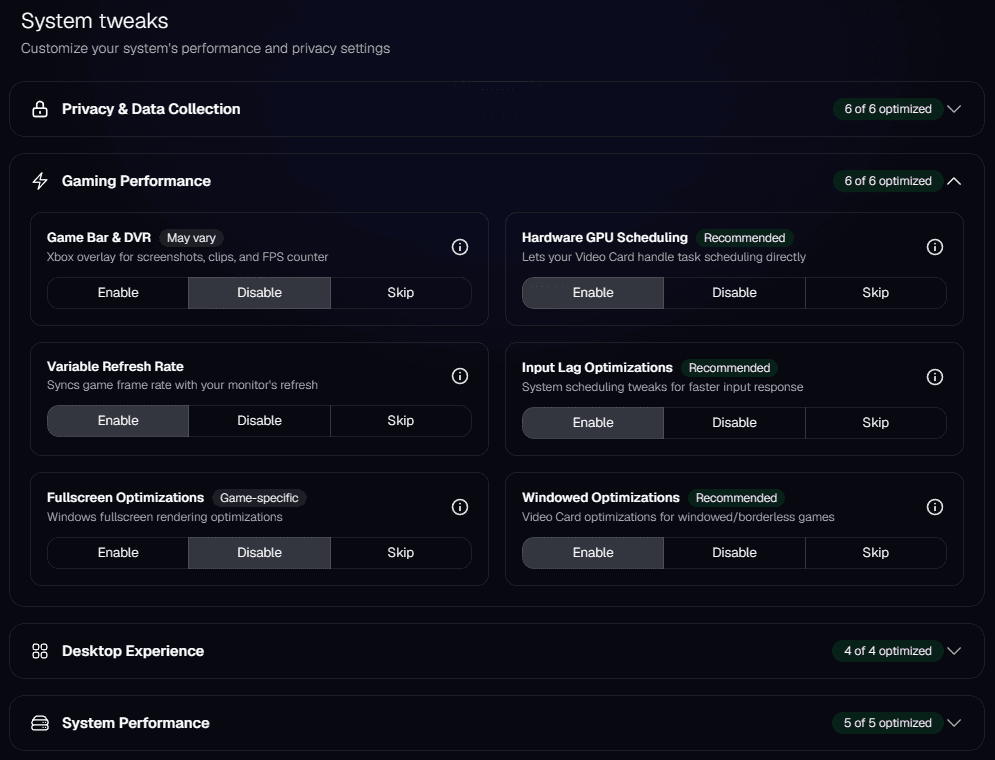
Both modes offer the same IQON presets. "IQON Essentials Only" makes the fewest changes, "IQON Recommended" is a balanced starting point, "Max Performance" uses more aggressive settings, and "Streamer Mode" is set up for streaming PCs. In Standard mode, you can also choose "Custom" to start with every option unset. The rest of this guide follows Standard mode.In the Tweaks step, expand a category to read about its settings, then choose which changes to apply. Select "Skip" for any setting you want to leave as it is.
IQON System tweaks step with Gaming Performance expanded and Enable, Disable, and Skip choices.
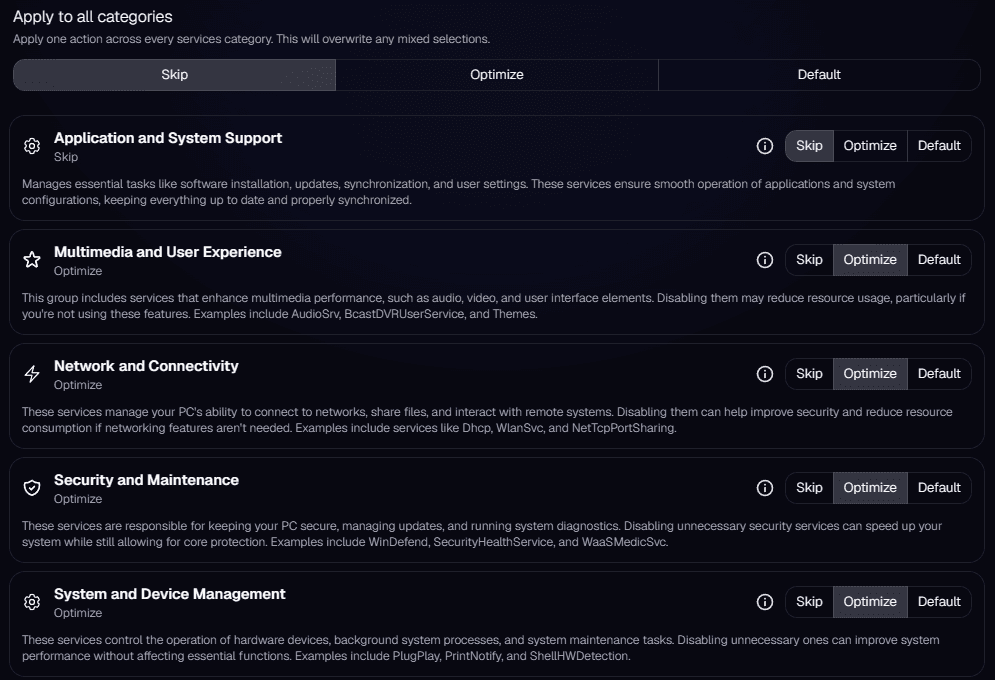
Leave features enabled if you use them. Disabling "Game Bar & DVR" affects recording, for example, and disabling "Memory Integrity" turns off a Windows security protection. Restoring default service settings will not restore your previous configuration.In the Debloat step, select the apps you want to remove. You can search to narrow the list; "Select all" selects the apps in those search results. If IQON finds no apps, continue without selecting any.In the Services step, choose an action for each category. "Skip" leaves it unchanged, "Optimize" applies IQON's configuration, and "Default" applies its default configuration. Using "Apply to all categories" replaces the choices you made for individual categories.
IQON Services step with Skip, Optimize, and Default choices for each service category.
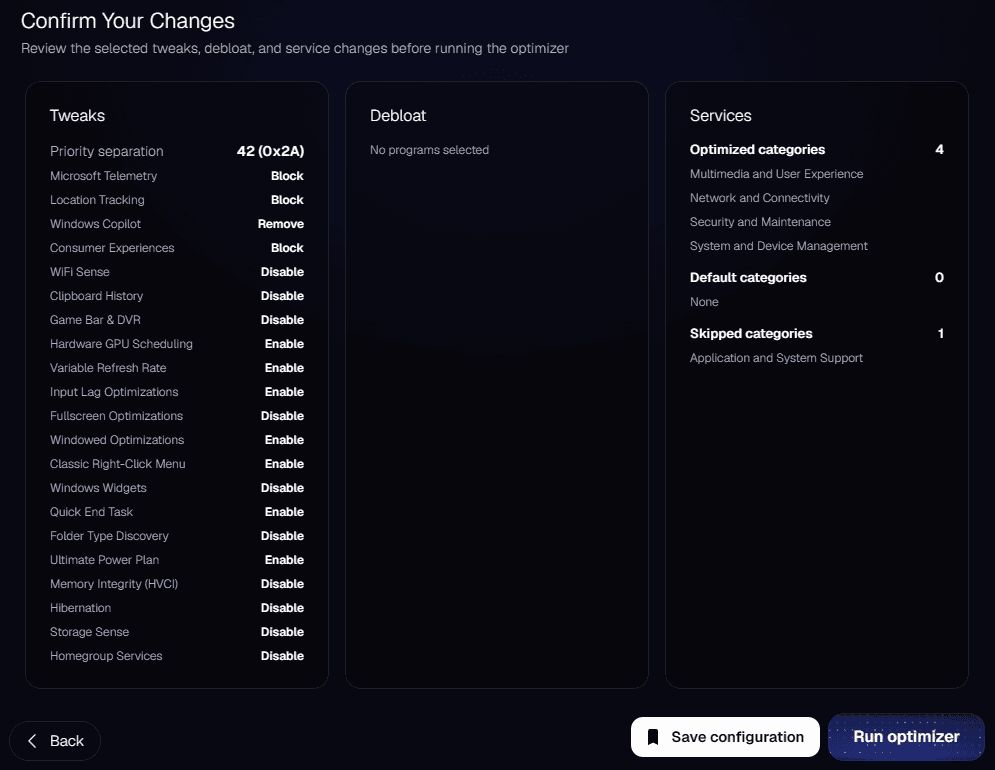
Select "Continue" when you finish each step. The space you could free up by removing apps is an estimate. The optimization count shows how many changes you selected; it does not measure a performance improvement.Check your selections on the "Confirm Your Changes" screen and select "Back" if you need to change anything. To reuse these choices later, select "Save configuration" and give it a name. It will then appear under "Saved" in One-Click mode. When you're ready, save any open work and select "Run optimizer".
IQON Confirm Your Changes screen with Save configuration and Run optimizer buttons.
If IQON can't create a restore point, read the prompt before you continue. There will be no new restore point for that run.If you see "Service disconnected" when you try to run the optimizer, check the background service connection. If it remains disconnected, open "Get Help" for support.When the optimizer finishes, IQON opens a "Next steps" window that walks you through three steps:
  1. Restart your PC. Save your work, then select "Restart now". Windows restarts after a 30-second countdown, and IQON reopens on its own and picks up at the next step. You can cancel during the countdown, or select "Skip" to restart later.
  2. Keep your PC optimized. Select "Enable optimizer checks" to turn on the Optimization Monitor, which checks every 24 hours whether your optimizations are still in place.
  3. Set up Live Boost. Select "Set up Live Boost" to open the Live Boost setup, or "Back to home" if you want to do it later.

IQON Next steps window after the optimizer finishes: Restart your PC, Keep your PC optimized, and Set up Live Boost.
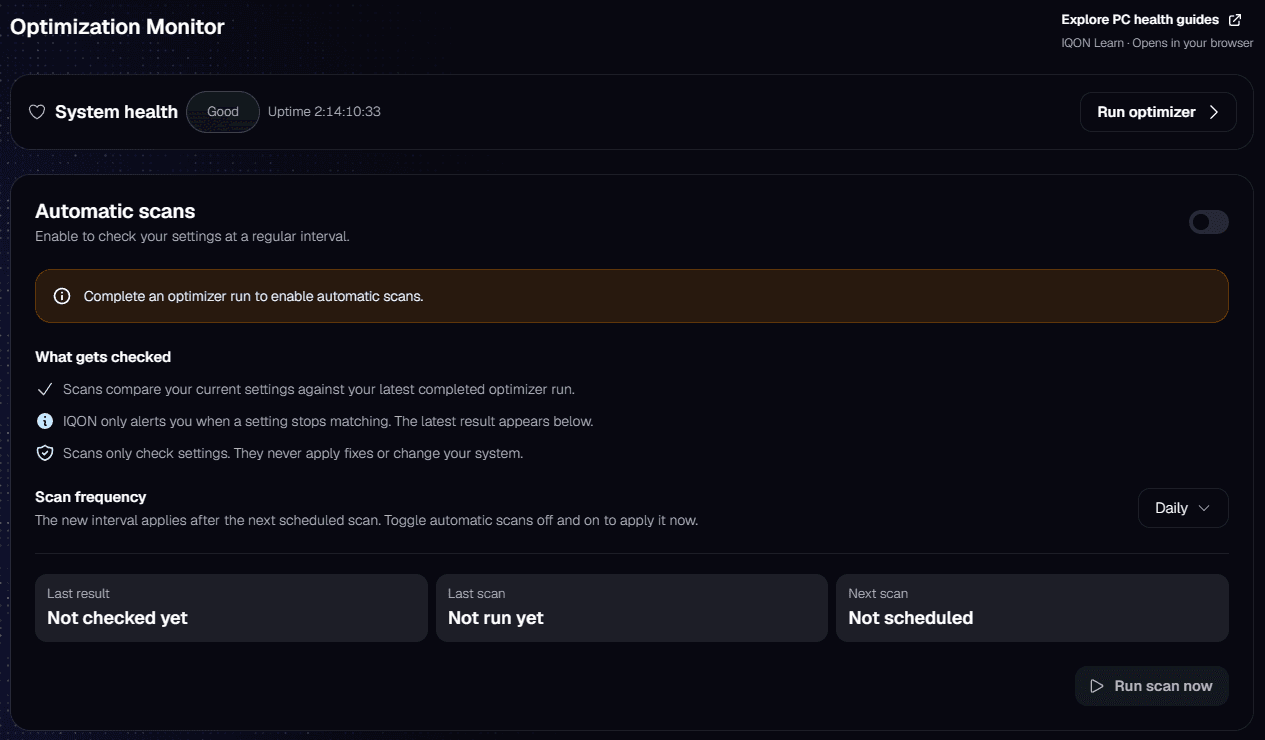
The Optimization Monitor checks whether the settings from your latest completed optimizer run are still applied, and tells you if any of them stop matching. It only checks your settings and never changes anything on your PC.Open it from Health Center > Optimization Monitor. Turn on "Automatic scans" to check on a schedule, then choose how often under "Scan frequency": every 12 hours, daily, every 72 hours, or weekly. "Automatic scans" becomes available after you complete an optimizer run.
IQON Health Center Optimization Monitor page with Automatic scans, what gets checked, scan frequency, and Run scan now.
The page shows the last result, when the last scan ran, and when the next one is due. Select "Run scan now" to check right away. If the result says "Changes detected", select "Run optimizer" at the top of the page to apply your settings again.Try your usual games and apps after optimization. To compare performance before and after the changes, record the same section of a game with the same graphics settings. Use the Frame Analyzer to compare frame-time consistency and average FPS. Results depend on your starting configuration and what you run, so a preset won't necessarily increase your FPS.Health Center > Optimizer history lists your completed and cancelled optimizer runs, including which changes were applied and any that IQON couldn't verify.To undo changes, open Optimize and select "Rollback" if it is available. The "Restore Point Guide" opens Windows System Restore, where you can choose a restore point from before the changes. Your recovery options depend on the restore points available on your PC. If you need help, open "Get Help".