

What the overlays are
Game overlay
Turning it on
- Open More > Game overlay.
- Turn on "Enable overlay". Your overlay hotkey then shows or hides it.
- Change "Overlay hotkey" if you want a different key.
- Drag the marker under "Overlay position" to place the panel, or turn on "Snap to corners". Choose the display under "Overlay monitor".
- Pick an "Overlay style": Default, Minimal, Colorful, or Custom. Custom lets you set the background and font colors. "Font size" and "Orientation" work with every style.
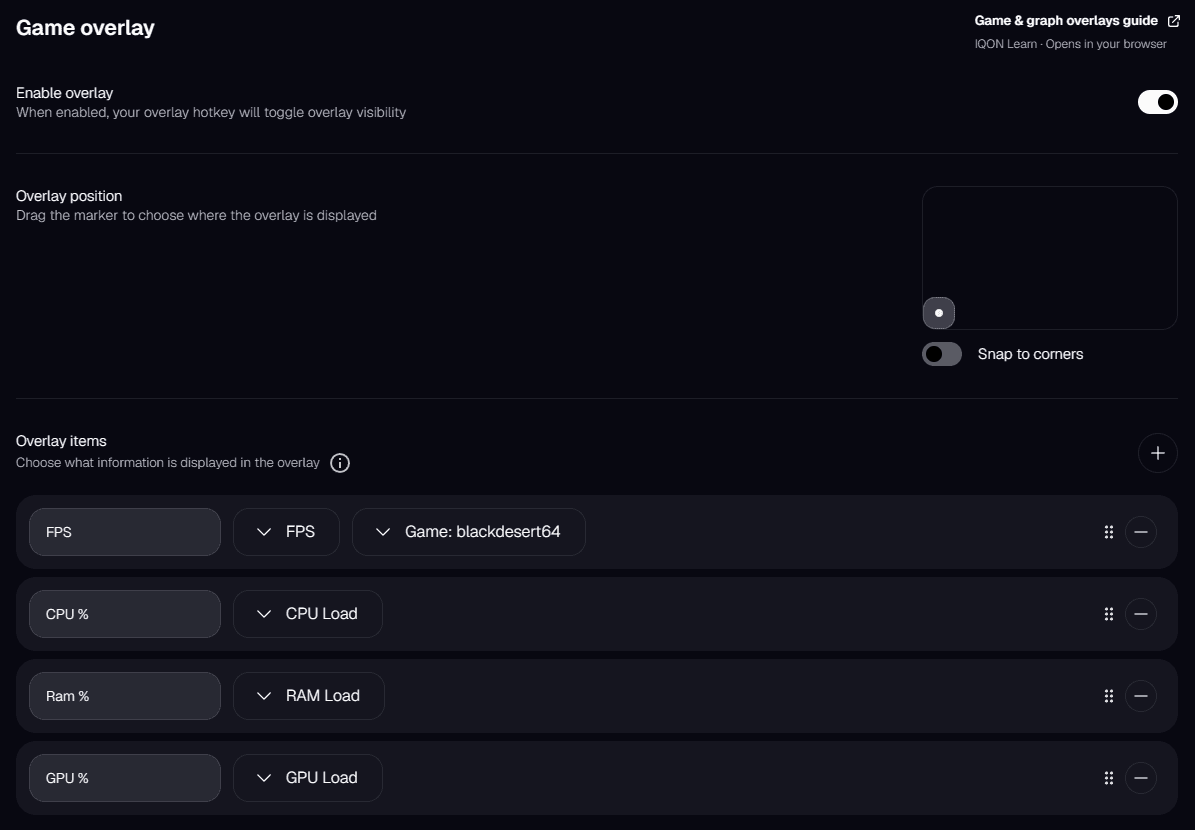
Overlay items
- Performance: FPS and Game Latency. If more than one game is running, choose which one to track.
- CPU and GPU: temperature, load, frequency, and voltage.
- Memory: RAM load.
- Status indicators: Recording Indicator, VPN Indicator, Live Boost Status, Background Control, and Core Director.
Graph overlay
Turning it on
- Open More > Graph overlay.
- Turn on "Enable overlay", then set "Overlay hotkey". The default is Ctrl+Shift+R.
- Choose the "Overlay monitor" and "Orientation", then drag the marker under "Overlay position" or turn on "Snap to corners".
- Pick a "Color preset": Default, Neon, Ember, Arctic, Stealth, or Sunset. "Advanced customization" lets you change the grid, graph type (area or line), y-axis, colors, animation, and minimum graph size.
- Set "Graph data points" to choose how much history each chart shows.

