TrademarkTrademark
Services
En savoir plus
Entreprise
IQON App
October 8·Updated October 8

Customization

TL;DR
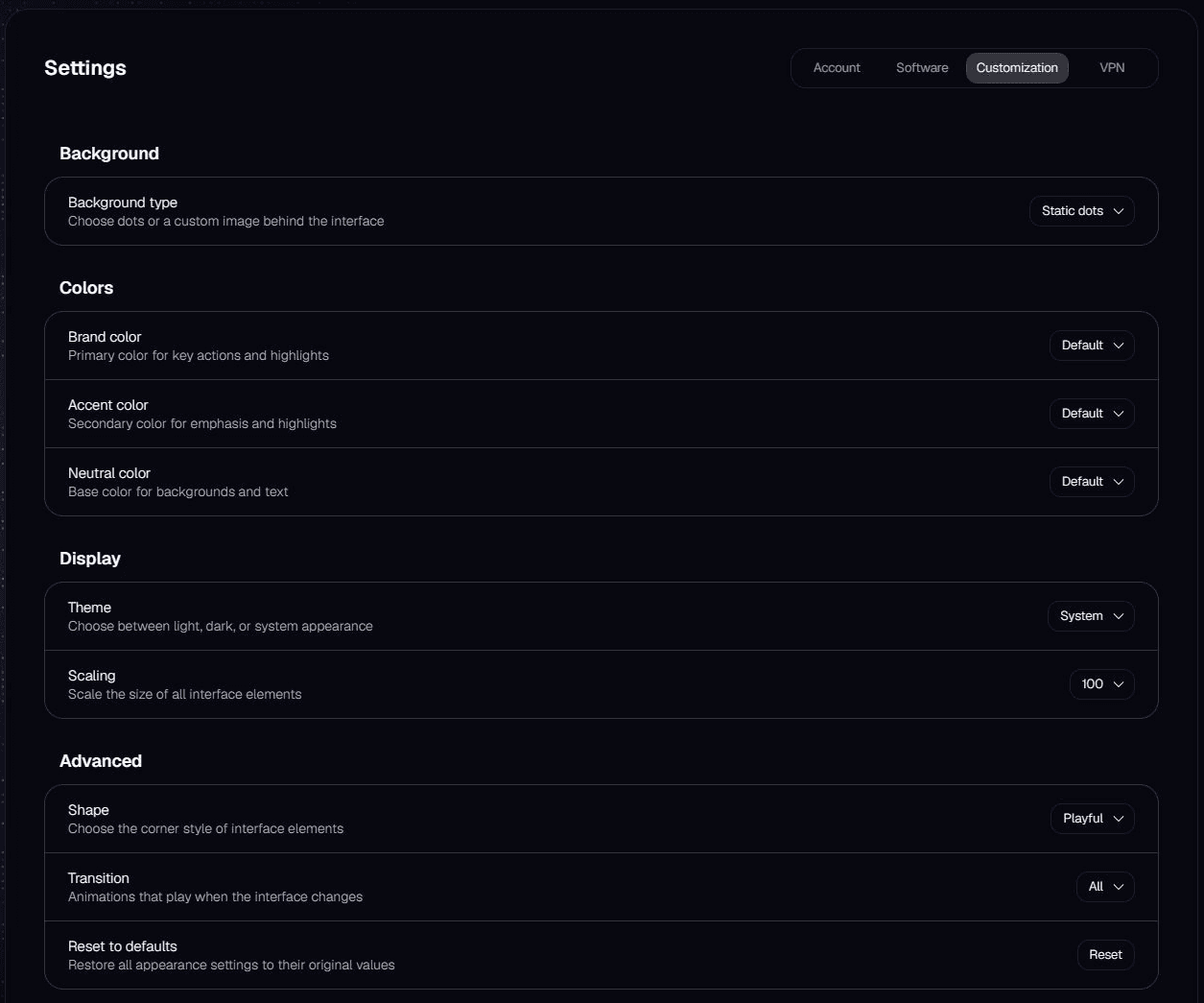
Open Settings > Customization to change IQON's theme, colors, interface size, and background. Your changes take effect as you make them.
Open Settings > Customization, then use the dropdowns to choose how IQON looks. Your changes take effect as you make them.
IQON refreshed native Customization settings with Background, Colors, Display, and Advanced sections.
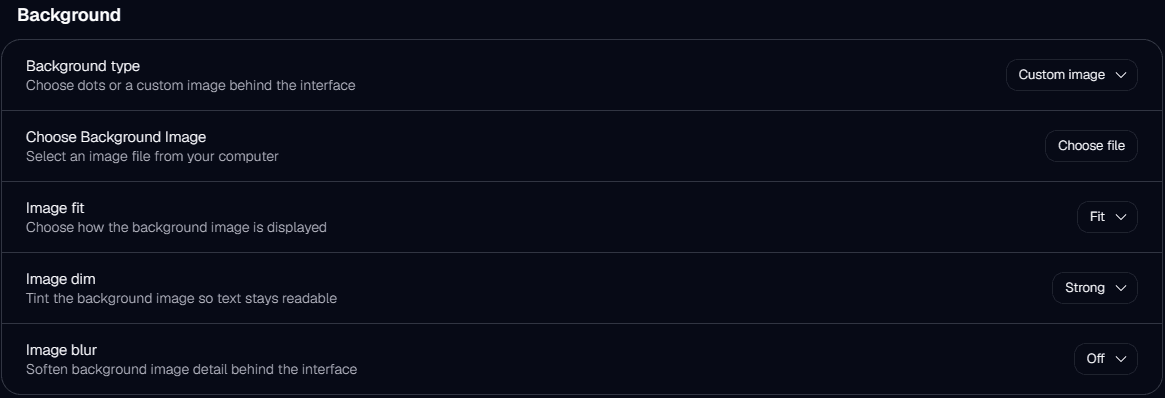
Use "Background type" to choose between "Static dots", "Animated dots", and "Custom image". If you choose "Animated dots", you can set "Animation speed" to "Slow", "Normal", or "Fast".To use your own picture, select "Custom image", click "Choose file", and pick a JPG, JPEG, PNG, WebP, BMP, or GIF file.
IQON Customization background settings with Custom image, Image fit, Image dim, and Image blur.
Use "Image fit" to choose how the picture fills the background. "Fill" covers the whole background, even if some edges of the picture are cropped. "Fit" keeps the entire picture visible. "Stretch" fills the area by changing the picture's proportions, and "Center" places it in the middle without stretching it.If the picture makes text hard to read, use "Image dim" to darken it or "Image blur" to soften its detail. Both can be set to "Off", "Light", "Medium", or "Strong". You can also switch "Background type" back to "Static dots".In Colors, you can change "Brand color", "Accent color", and "Neutral color". In Display, set "Theme" to "Light", "Dark", or "System". Choose "System" to follow your Windows theme. Use "Scaling" to make the interface larger or smaller.In Advanced, use "Shape" to change the style of corners and "Transition" to adjust interface animations. Set "Transition" to "None" if you want fewer animations. To stop the animated background too, change "Background type" to "Static dots".Select "Reset" to restore the default theme and style settings, including colors, scaling, shape, and transitions. Reset doesn't change your background settings.