TrademarkTrademark
Servicios
Aprender
Empresa
Descargar ahora
IQON App
July 11·Updated July 11

Live Boost Advanced: Per-game overrides and saved masks

TL;DR
The Live Boost Advanced screen lets you pin a specific Core Director profile to individual games, and save reusable masks you can apply across your library. This guide walks through every step of the screen — from picking a game, to choosing between IQON Recommended and a custom mask, to saving and reusing your favorites.
Most of the time, Live Boost picks the right Core Director profile for each of your games automatically. The Advanced screen is where you take the wheel. Use it when:
  • You want one specific game to always use a particular profile.
  • The automatic profile isn't ideal for a game and you want to pin a better one.
  • You want to fine-tune which cores a game uses, or build your own custom profile.
  • You want to reuse the same custom profile across several games without rebuilding it each time.
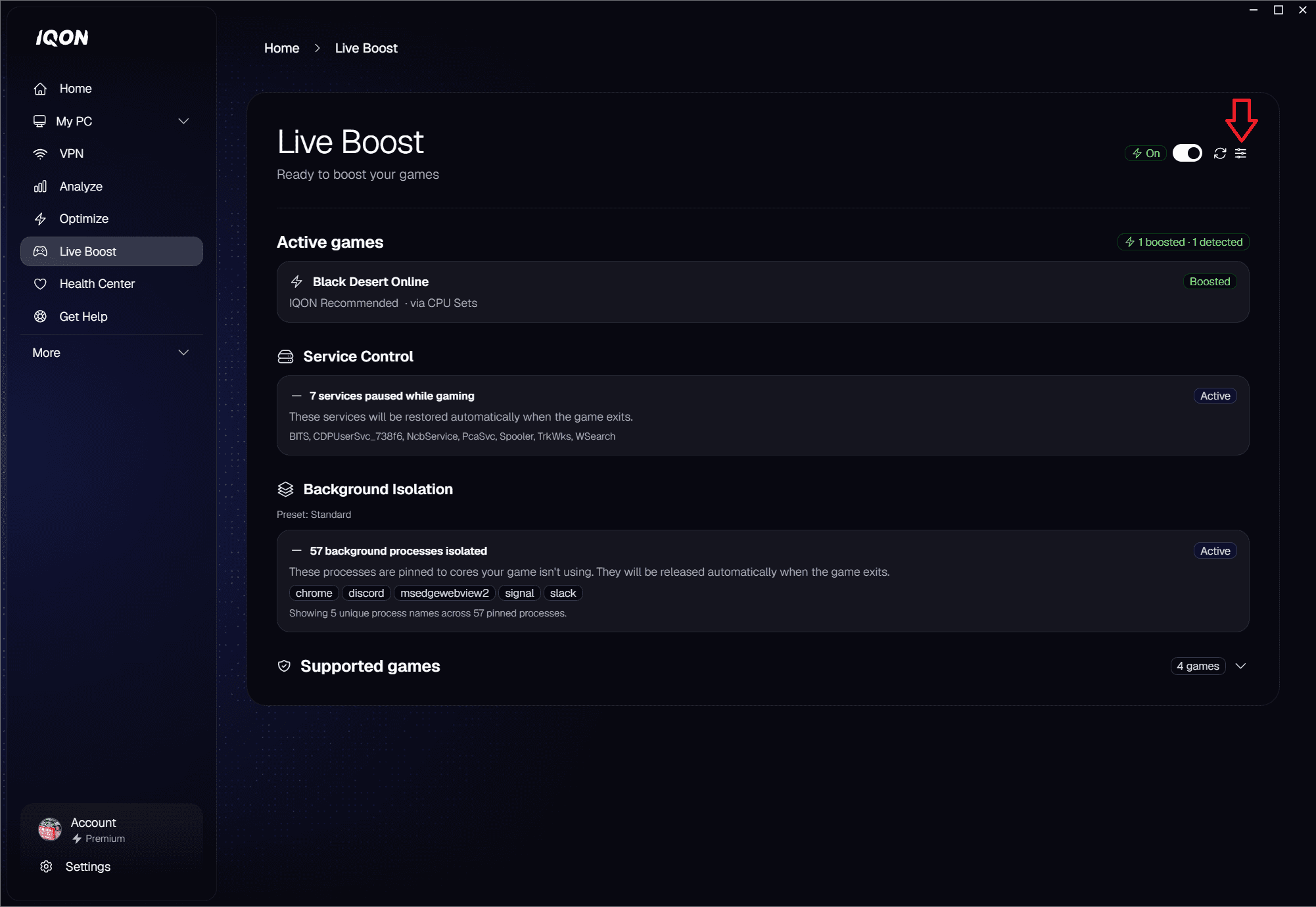
Anything you set up here is saved automatically and applied right away — as soon as you save, the new profile takes effect. You don't need to relaunch the game.
Article image
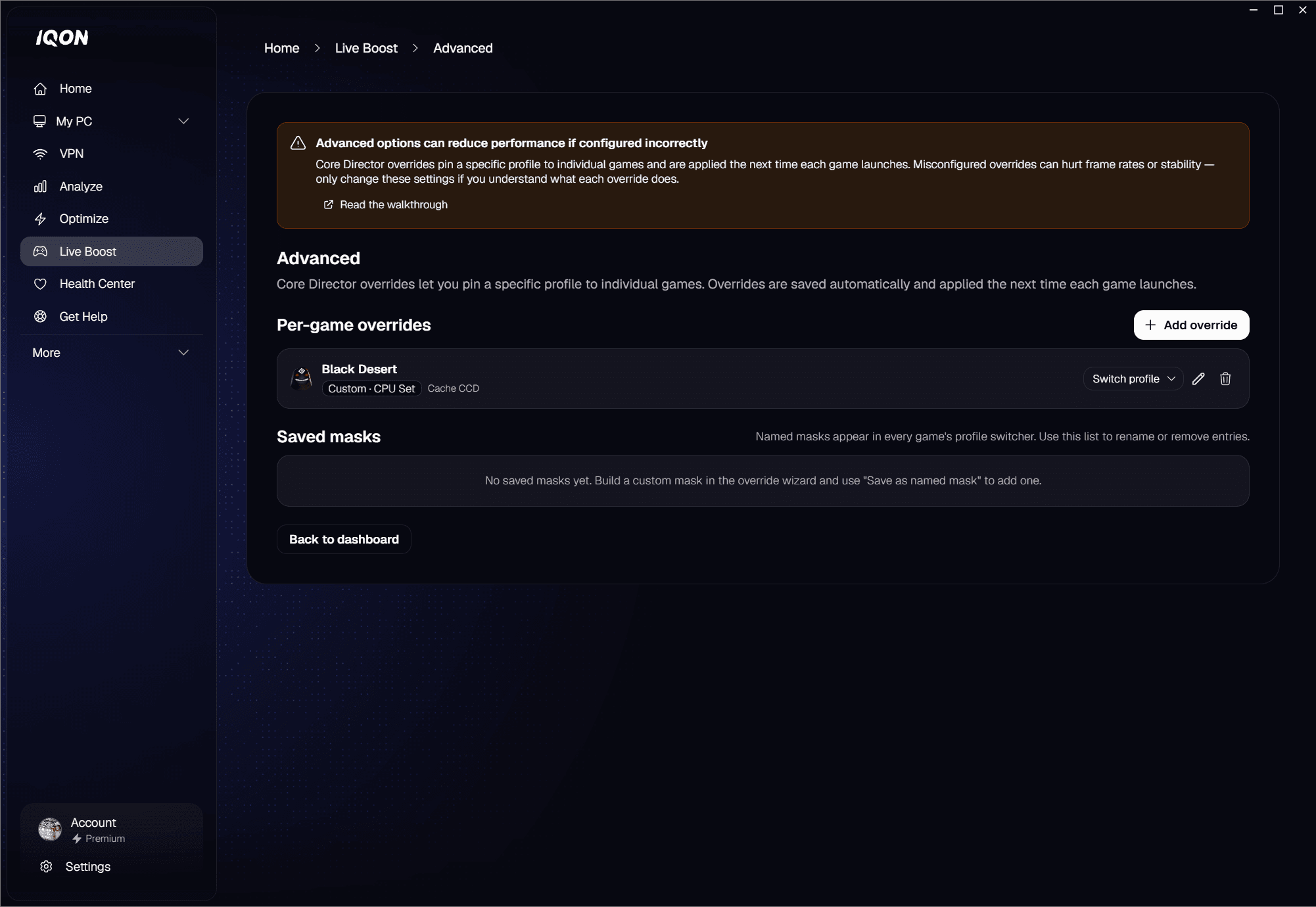
Open IQON and go to Live Boost. From the dashboard, click Advanced. You'll see two sections stacked on top of each other:
  • Per-game overrides — a list of every game you've pinned a specific profile to.
  • Saved masks — the reusable custom profiles you've named, ready to apply to any game.
When you're done, click Back to dashboard to return to the main Live Boost view.An override is a rule that says: "for this game, always use this specific profile." Once you save an override, that profile takes effect immediately — no need to relaunch.Each row shows the game's icon and name, the profile tag (IQON Recommended, Custom · CPU Set, Custom · Affinity, etc.), and a short detail of which cores or hex mask is in use. To the right are buttons to switch the profile, edit the override, or remove it.
Article image
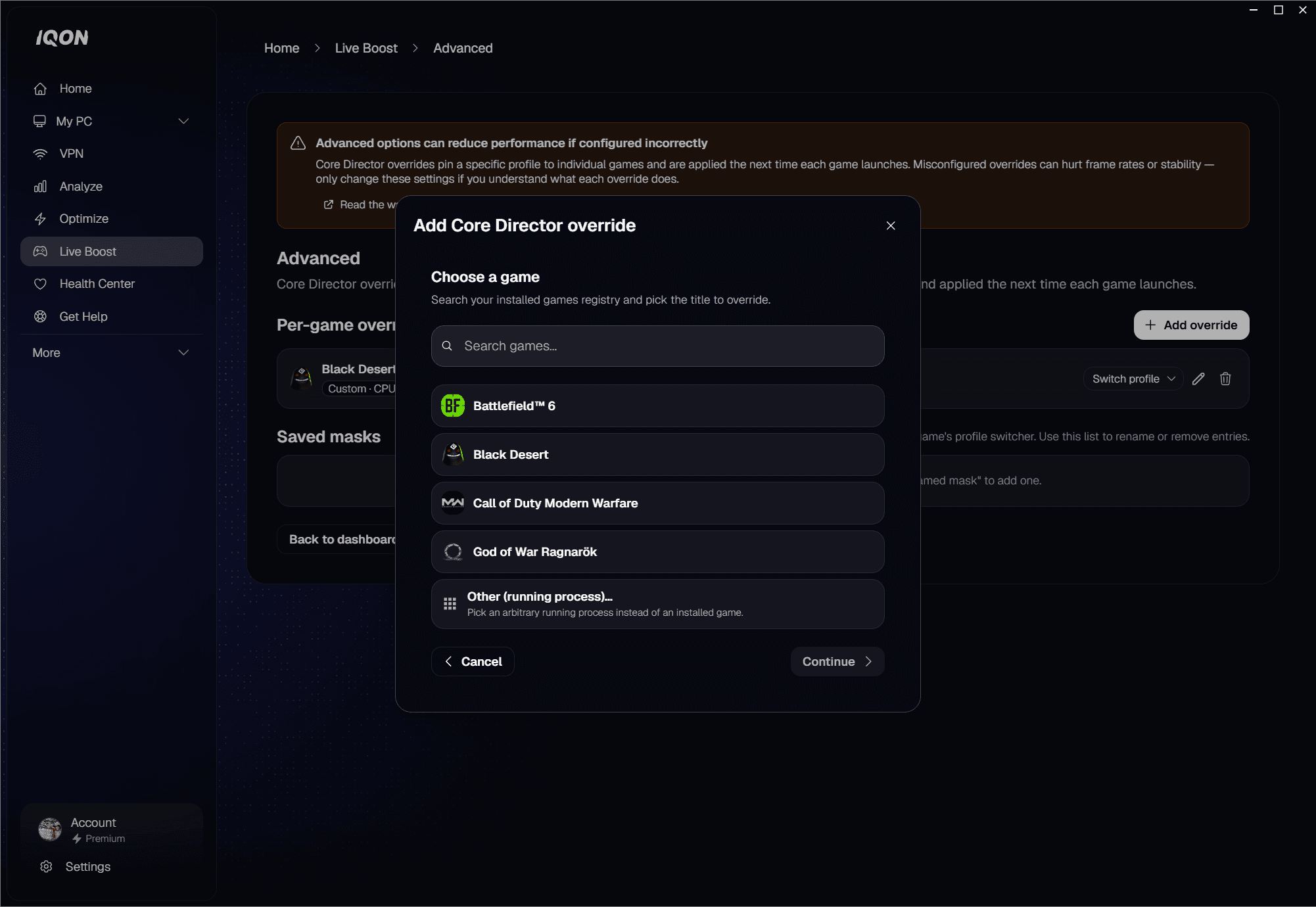
Click Add override to open the wizard. The wizard walks you through a few short steps:
  1. Select a game — pick from your installed library, or choose Other (running process) if you want to target a tool or game IQON doesn't recognize.
  2. Choose a profile — IQON Recommended to keep the curated profile for that game, or Custom to build your own.
  3. If you picked IQON Recommended, optionally pin a specific non-default option from the curated list. Otherwise, choose Affinity Mask or CPU Set for your custom mask.
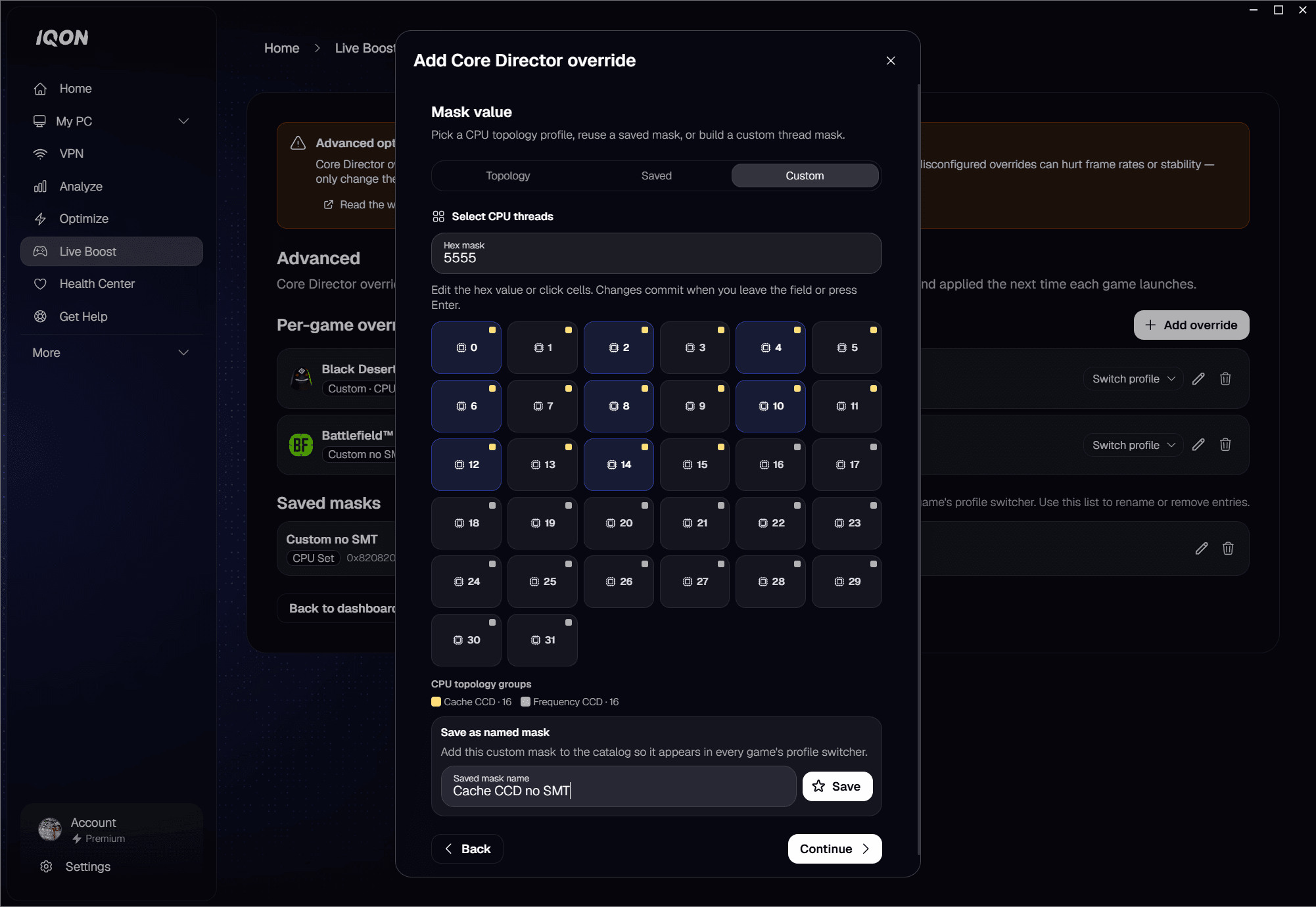
  4. Enter the mask — pick the cores you want the game to use, or paste a hex value.
  5. Confirm — review your selection and click Save override. The new profile takes effect immediately.
Article image
If you don't want to add an override yet, click the trash icon on an existing row to remove it and go back to the automatic profile for that game.Click Switch profile on any row to swap the override to a different option without re-running the wizard. The menu is grouped into three sections:
  • IQON Recommended — the curated profiles for that game, with a check mark on whichever one is active.
  • CPU topology — the core groups your CPU exposes (e.g. Performance cores, Efficiency cores).
  • Saved masks — your named custom profiles (see the next section).
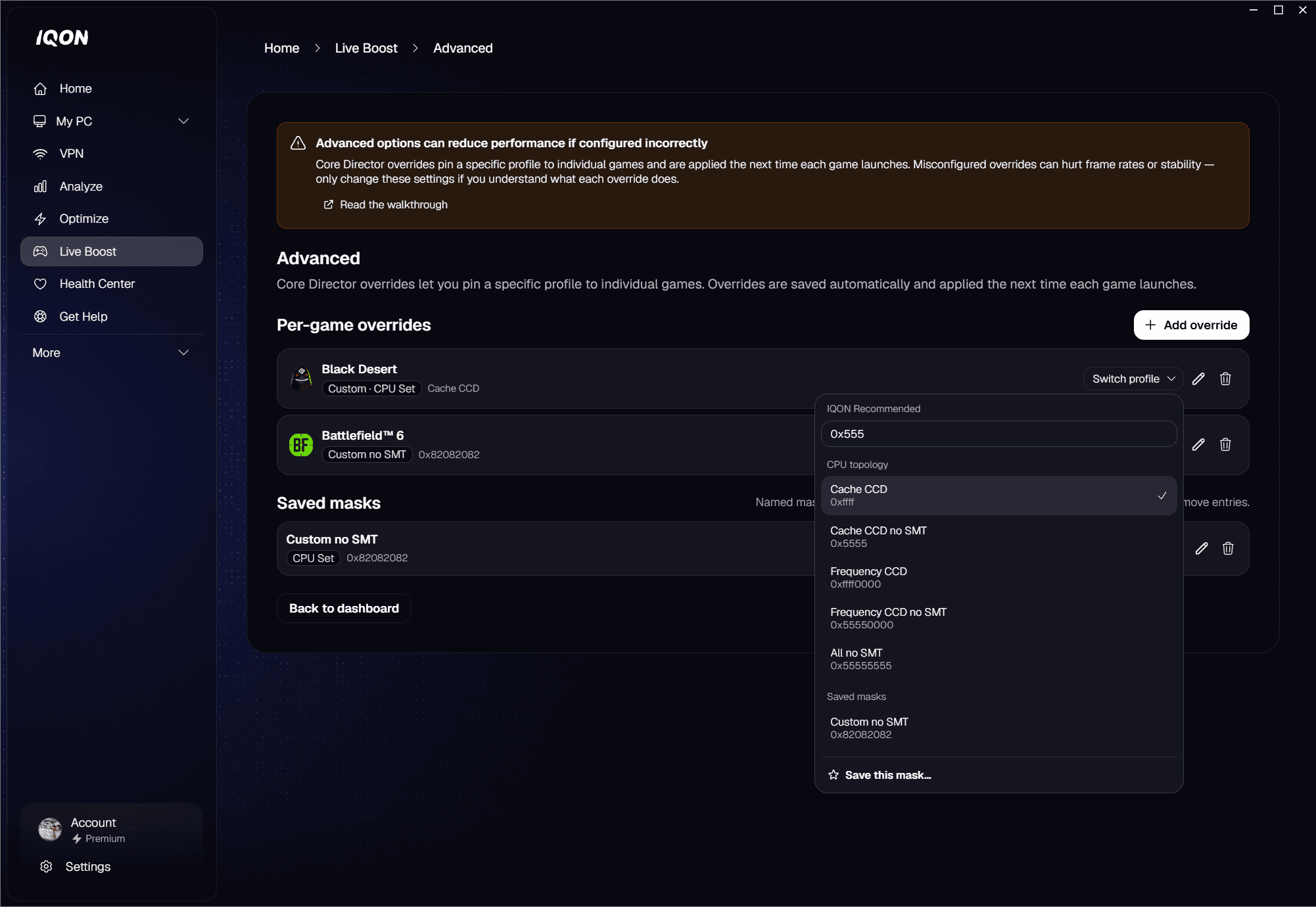
The switch happens immediately — no relaunch needed.
Article image
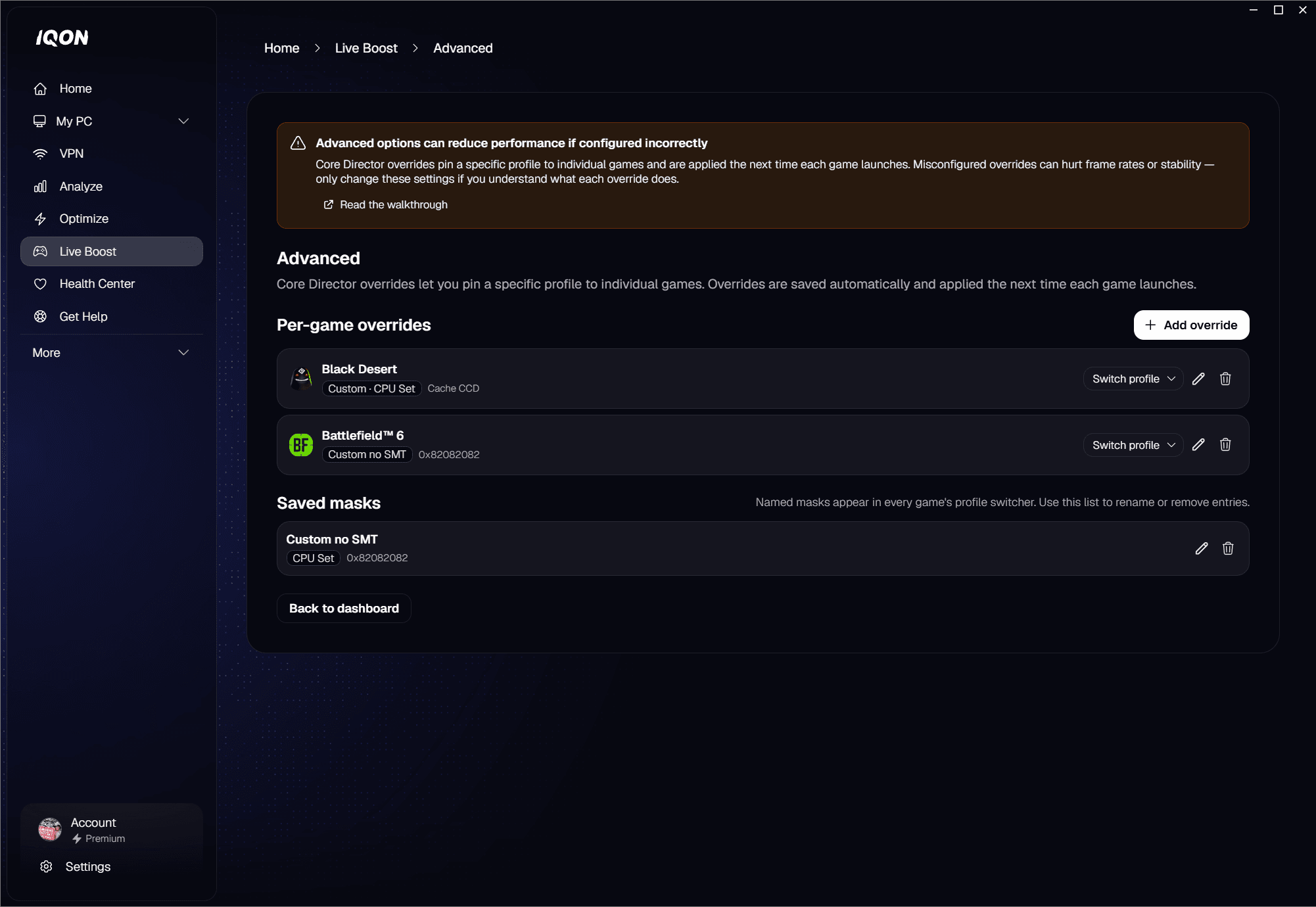
The pencil icon edits the override — it re-opens the wizard pre-filled with the current profile so you can change the profile choice, mask kind, or cores without starting over.The trash icon removes the override. The game goes back to whatever Live Boost picks for it automatically. Removing an override does not delete any saved mask it used — saved masks are independent and reusable.A saved mask is a custom profile you've named so you can reuse it across your library. If you build a "P-cores only" mask for one game and like it, save it as a named mask and it'll show up in the Switch profile menu of every other game with an override.Each saved mask shows its name, the kind (Affinity Mask or CPU Set), and the hex mask value. From this list you can rename a saved mask or delete it entirely.
Article image
On any override row, open the Switch profile menu and click Save this mask at the bottom. Give it a name (e.g. "P-cores only" or "Streaming profile") and click Save mask. The mask is now available everywhere.
Article image
The pencil icon on a saved mask opens a Rename dialog — type a new name and click Save. The trash icon removes the saved mask entirely. Removing a saved mask does not change the override on any game that was using it; that override simply becomes a regular custom profile with no name.Click Add override, pick the game, and choose IQON Recommended if you want to keep IQON's curated profile, or Custom if you want to set your own cores. Save, and you're done — the override takes effect right away.Add an override for the game, then use the Switch profile button on its row to flip between options. The change is saved and applied automatically — no relaunch required.On the row that uses it, open Switch profile and click Save this mask. Give it a name. Add overrides on your other games and pick the saved mask from the Switch profile menu on each row.Click the trash icon on its row. The override is removed and Live Boost picks the profile automatically for that game.
  • Changes here are saved and applied automatically. There's no separate Save button on the main Advanced screen — anything you do takes effect right away, with no relaunch.
  • Affinity masks are stronger than CPU sets. If you can, use an Affinity mask — the OS enforces it, while a CPU set is only a preference. The override wizard lets you pick whichever you need.
  • Don't use a third-party affinity tool alongside an override — they can fight over which cores the game ends up on. Pick one.
  • Saved masks are independent from overrides. Removing an override doesn't delete the saved mask it used, and removing a saved mask doesn't change any override that referenced it.
  • If a game isn't on the installed-games list, you can still target it with Other (running process) at the start of the wizard.
For a recap of how Live Boost works in general, see the Live Boost overview guide.