TrademarkTrademark
Servicios
Aprender
Empresa
Aplicación IQON
July 3·Actualizado October 8

Live Boost: Automatic Game Optimization

En resumen
Live Boost optimizes supported games while IQON is running. When a game starts, it can assign CPU cores with Core Director, pause non-essential Windows services, and move busy background apps off the game's cores. It reverses everything when the game closes.

What Live Boost is

Live Boost optimizes your games automatically while IQON is running. It starts when a supported game launches and reverses its changes when you quit, so you don't need scripts or manual steps. Live Boost only works while IQON is open or in the system tray, and it's included with an IQON subscription.

How it works

  • Live Boost watches for supported games while IQON is open or in the tray.
  • When a game starts, it applies optimizations automatically.
  • When the game closes, it reverses them.
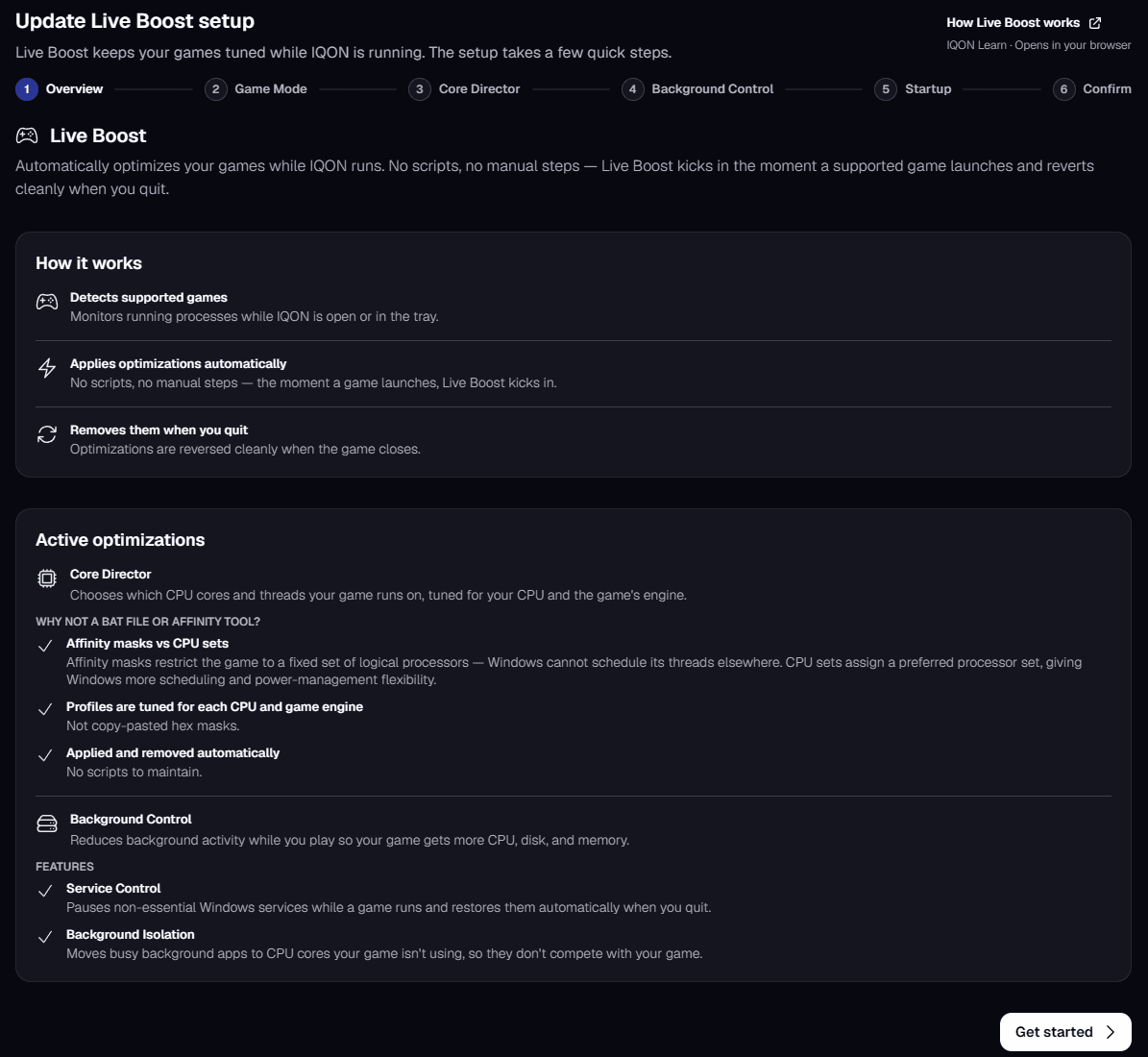
IQON Live Boost setup overview explaining how Live Boost works and its active optimizations.

Setting it up

The first time you open Live Boost, a short setup walks you through the options below. To change them later, select the Re-run setup button (the circular arrows) on the dashboard, then finish the setup again to return to the dashboard.

Windows Game Mode

Windows Game Mode and Core Director can compete for CPU cores, especially on some AMD CPUs, so Live Boost works best with Game Mode turned off. If Game Mode is on, the setup offers "Turn off Game Mode" or "Continue with Game Mode on". If you keep it on, Live Boost may be less reliable.

Core Director

Core Director chooses which CPU cores and threads your game runs on, using profiles tuned for your CPU and the game's engine. Choose how it runs:
  • Automatic (Recommended) boosts most games as soon as they launch, using IQON's recommended profile for each game.
  • Manual only boosts only the games you've added a custom override for.
  • Off doesn't change which cores your games use. Background Control still works.
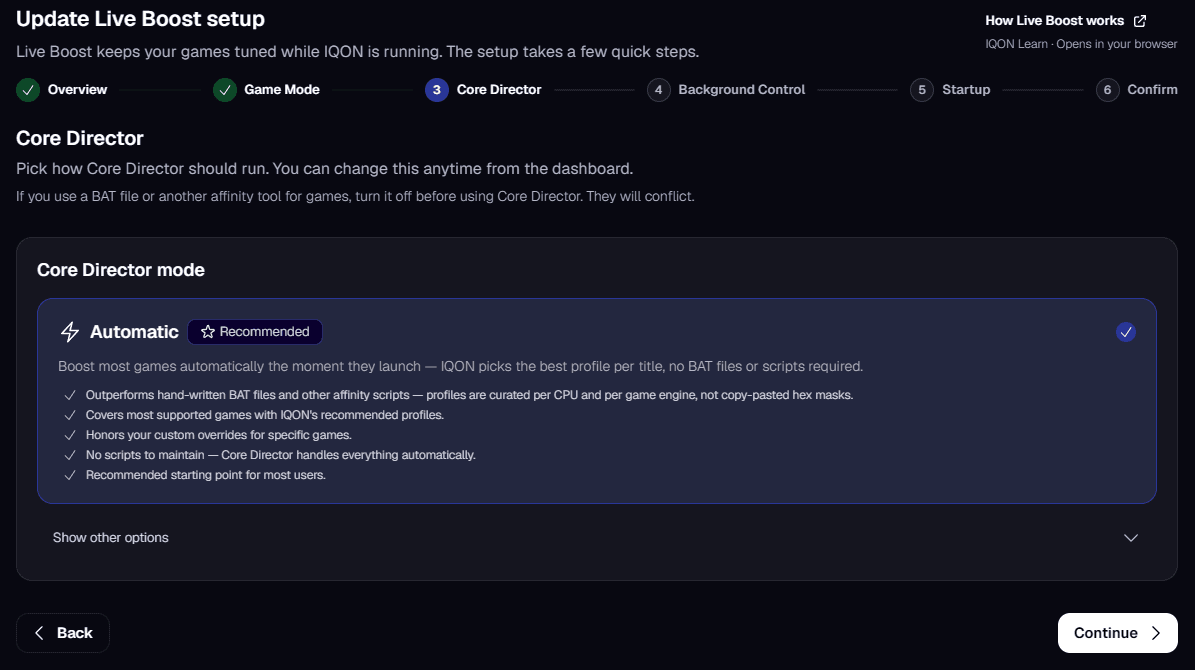
IQON Live Boost setup Core Director step with Automatic mode selected.

Affinity masks vs CPU sets

An affinity mask restricts the game to a fixed set of logical processors, and Windows can't schedule its threads anywhere else. A CPU set gives the game a preferred set of processors, which leaves Windows more room for scheduling and power management. IQON applies and removes these profiles automatically, so there are no scripts to maintain.If you use a BAT file or another affinity tool for games, turn it off before using Core Director. The two will conflict.

Background Control

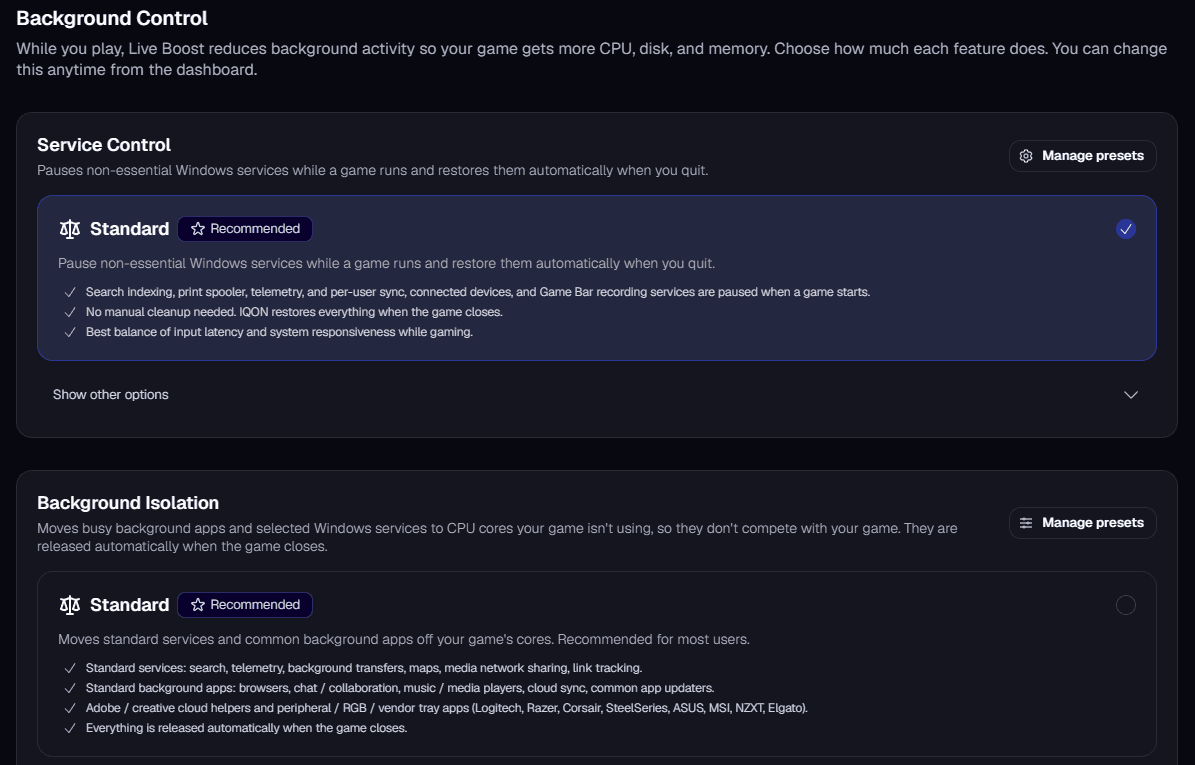
Background Control reduces background activity while you play, so your game gets more CPU, disk, and memory. It has two parts: Service Control and Background Isolation.
IQON Live Boost setup Background Control step with Service Control and Background Isolation presets.

Service Control

Service Control pauses non-essential Windows services while a game runs and restores them when you quit.
  • Standard (Recommended) pauses search indexing, the print spooler, telemetry, and per-user sync, connected devices, and Game Bar recording services when a game starts. IQON restores them when the game closes.
  • Off leaves Windows services running. Core Director still optimizes your game.

Background Isolation

Background Isolation moves busy background apps and some Windows services to CPU cores your game isn't using, so they don't compete with it. They're released when the game closes. Choose a preset:
  • Standard (Recommended) covers services such as search, telemetry, and background transfers, plus common background apps like browsers, chat apps, media players, cloud sync, app updaters, Adobe helpers, and peripheral or RGB software.
  • Creator adds more Windows services, streaming and recording apps such as OBS, Streamlabs, XSplit, NVIDIA Broadcast, and Elgato capture, and screen capture tools. Use it when you stream or record while gaming.
  • Extreme adds Windows Update services and security software such as antivirus. Use it only if your security software noticeably slows down your games.
  • Off never moves services or background apps off your game's cores.
To build your own list, select "Manage presets" next to Service Control or Background Isolation. You can also manage custom presets in the Background Control tab of the Advanced screen.

Startup

Live Boost only runs while IQON is running. The startup step lets you turn on "Launch IQON at startup" and "Start minimized to the tray", so Live Boost is ready before you open a game.

Confirm

The last step shows a "Ready to activate Live Boost" summary with your Core Director mode, Service Control and Background Isolation settings, Game Mode compatibility, and startup options. Select "Activate Live Boost" to finish.

Using the dashboard

After setup, the Live Boost dashboard shows what Live Boost is doing:
  • The switch at the top turns Live Boost on or off. The header shows "Boosting your games" while it's on and "Live Boost is paused" while it's off.
  • Active games lists supported games that are running. Each one shows its Core Director profile, whether it was applied through CPU sets or an affinity mask, and which features are active.
  • Service Control shows how many services are paused. IQON restores them when the game exits.
  • Background Isolation shows how many background processes are isolated and which preset is active.
  • Supported games lists the games on your PC that Live Boost recognizes. Games without a Core Director profile are listed as compatible and still get Background Control while they run.
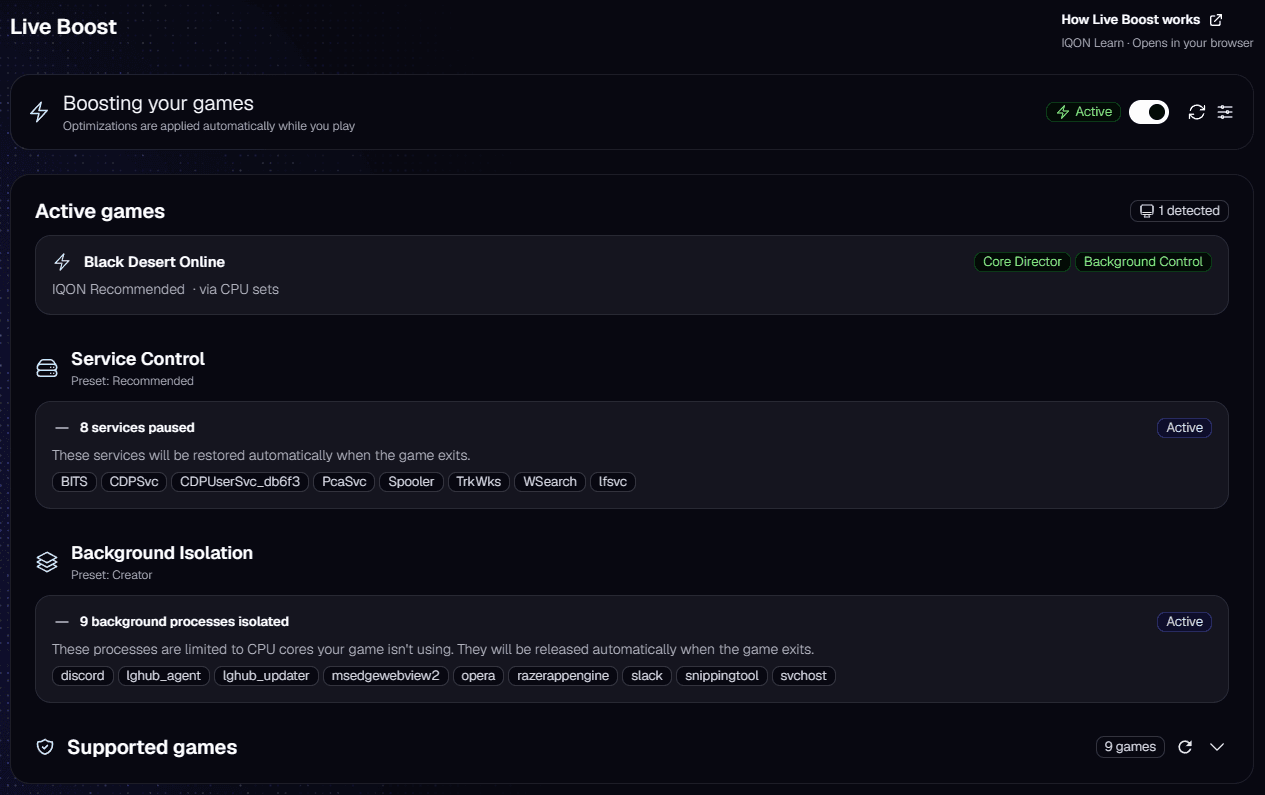
IQON Live Boost dashboard boosting Black Desert Online with Service Control and Background Isolation active.

Advanced overrides

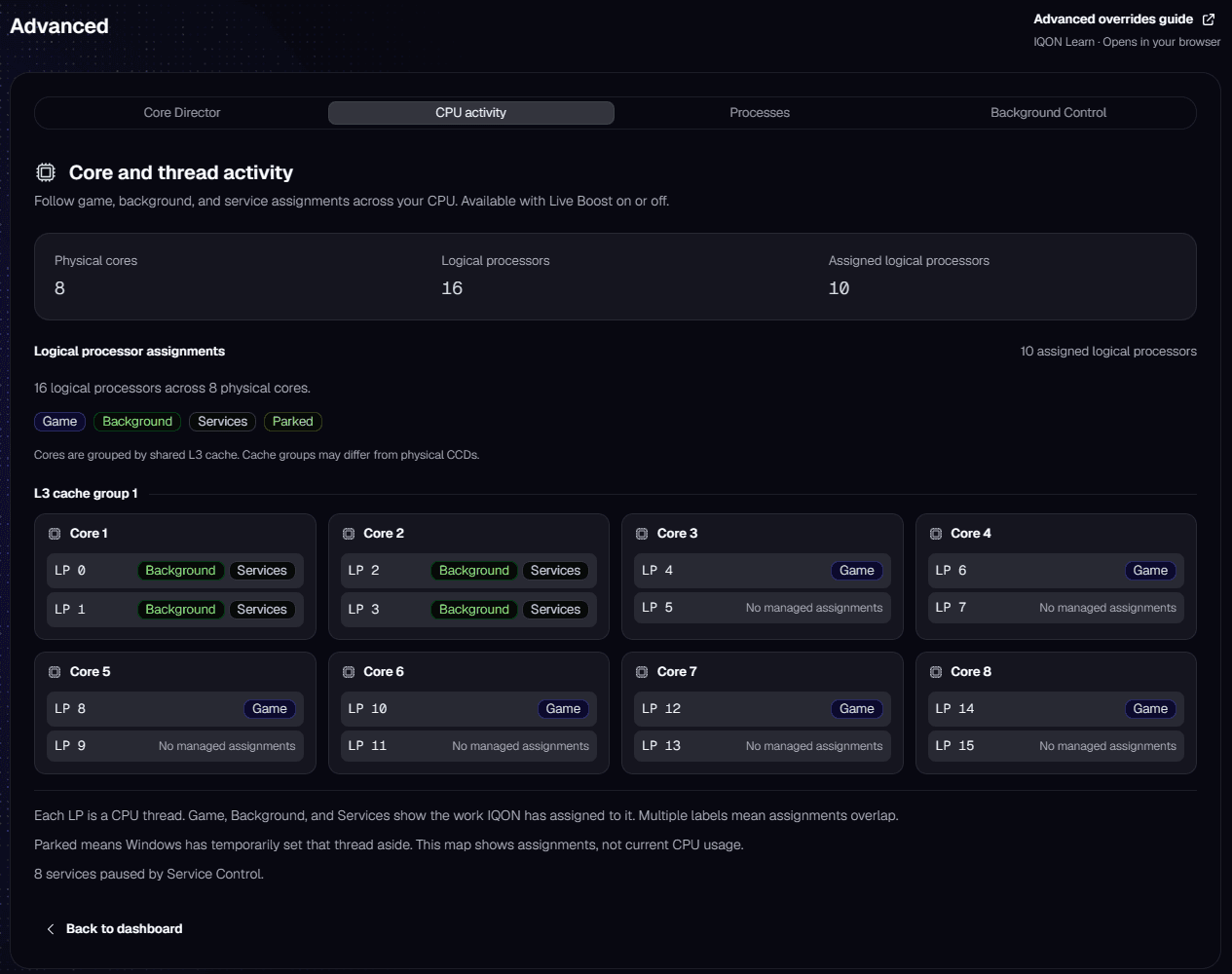
Select the Advanced button (the sliders icon) on the dashboard to pick a Core Director profile for a specific game, save reusable CPU masks, see which CPU threads IQON has assigned, and manage custom Background Control presets. For a full walkthrough, see the Live Boost Advanced guide.
IQON Live Boost Advanced CPU activity tab showing game, background, and service assignments for each logical processor.