TrademarkTrademark
Servicios
Aprender
Empresa
Aplicación IQON
July 19·Actualizado October 8

Game Overlay and Graph Overlay

En resumen
IQON has two overlays. The Game overlay shows a short list of live values and status indicators while you play. The Graph overlay charts sensors over time so you can spot spikes. Both work in any game and on the Windows desktop.

What the overlays are

The Game overlay is a small panel of live values and status indicators. The Graph overlay plots sensor readings as charts over a rolling window, so you can see stutters, latency jumps, or rising temperatures as they happen. Both draw through Windows instead of hooking into a game's graphics API, so they work without any per-game setup.Find them in IQON under More > Game overlay and More > Graph overlay. Each page has its own enable switch, hotkey, monitor, position, and list of overlay items.

Game overlay

Use the Game overlay when you want a few numbers or status badges on screen without switching away from your game.

Turning it on

  • Open More > Game overlay.
  • Turn on "Enable overlay". Your overlay hotkey then shows or hides it.
  • Change "Overlay hotkey" if you want a different key.
  • Drag the marker under "Overlay position" to place the panel, or turn on "Snap to corners". Choose the display under "Overlay monitor".
  • Pick an "Overlay style": Default, Minimal, Colorful, or Custom. Custom lets you set the background and font colors. "Font size" and "Orientation" work with every style.
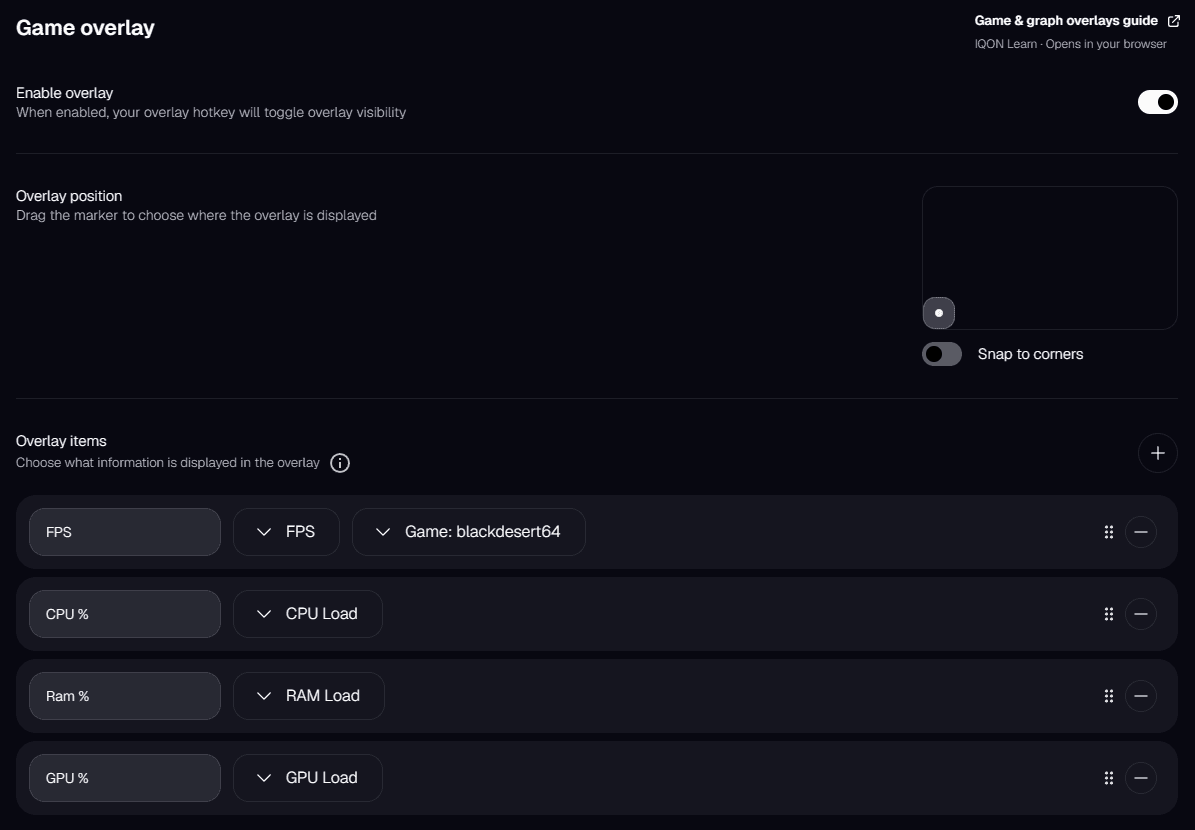
IQON Game overlay settings with the enable switch, overlay position marker, and overlay items.

Overlay items

Overlay items control what the panel shows and in what order. Select the plus button to add an item, choose its data source, rename the label if you like, and drag items to reorder them. The list order is the order you see in game.The Game overlay can show:
  • Performance: FPS and Game Latency. If more than one game is running, choose which one to track.
  • CPU and GPU: temperature, load, frequency, and voltage.
  • Memory: RAM load.
  • Status indicators: Recording Indicator, VPN Indicator, Live Boost Status, Background Control, and Core Director.
Keep the list short. A few values you actually watch, such as FPS, GPU temperature, and Live Boost Status, are easier to read than a long list.

Graph overlay

Use the Graph overlay to see what just spiked. It helps you match a hitch, a latency jump, or a temperature climb to a sensor reading.

Turning it on

  • Open More > Graph overlay.
  • Turn on "Enable overlay", then set "Overlay hotkey". The default is Ctrl+Shift+R.
  • Choose the "Overlay monitor" and "Orientation", then drag the marker under "Overlay position" or turn on "Snap to corners".
  • Pick a "Color preset": Default, Neon, Ember, Arctic, Stealth, or Sunset. "Advanced customization" lets you change the grid, graph type (area or line), y-axis, colors, animation, and minimum graph size.
  • Set "Graph data points" to choose how much history each chart shows.

What you can graph

The Graph overlay charts numeric sensors: CPU and GPU temperature, load, frequency, and voltage, plus RAM load, FPS, and Game Latency. Status indicators such as Live Boost Status and VPN Indicator only appear on the Game overlay.Add the items you want, label them, and reorder them. For FPS or latency with more than one game running, choose which game each item tracks.

Where the overlays work

The overlays don't depend on DirectX, Vulkan, or OpenGL hooks, so they appear in fullscreen, borderless, and windowed games, in emulators and older games, and on the Windows desktop. The desktop option is handy for watching temperatures during a benchmark or a long encode.

Choosing between them

Use the Game overlay for a quick summary while you play, such as FPS, temperatures, or VPN and Live Boost status. Use the Graph overlay when something feels wrong and you want to see what changed. You can also keep a short Game overlay on screen and turn on the graphs only when you need them.For a closer look at frame times after a session, use the Frame Analyzer. For automatic CPU and background optimization while you play, see Live Boost.