

What the Advanced screen is for
- You want a game to always use a particular profile.
- The automatic profile doesn't work well for a game.
- You want to choose exactly which CPU threads a game can use.
- You want to reuse the same custom mask across several games.
Getting to the Advanced screen
- Core Director: per-game overrides and saved masks.
- CPU activity: which CPU threads IQON has assigned to your game, background apps, and services.
- Processes: running processes with their CPU use, memory, and file path.
- Background Control: your custom Service Control and Background Isolation presets.
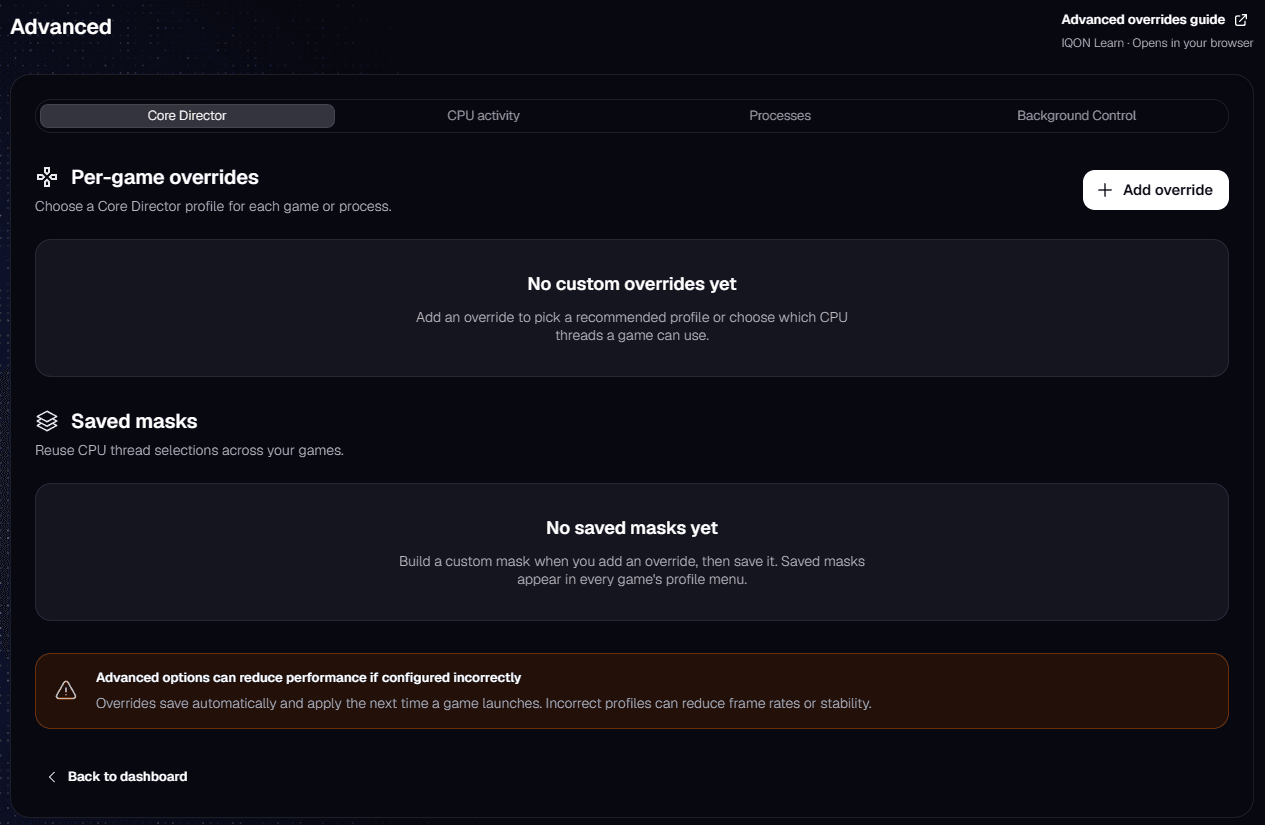
Per-game overrides
Adding an override
- Choose a game. Search your installed games, or select "Other (running process)…" to pick any app that's running.
- Choose a profile. "IQON Recommended" uses IQON's profile for that game, tuned for its engine and your CPU. "Custom" lets you choose the CPU threads yourself.
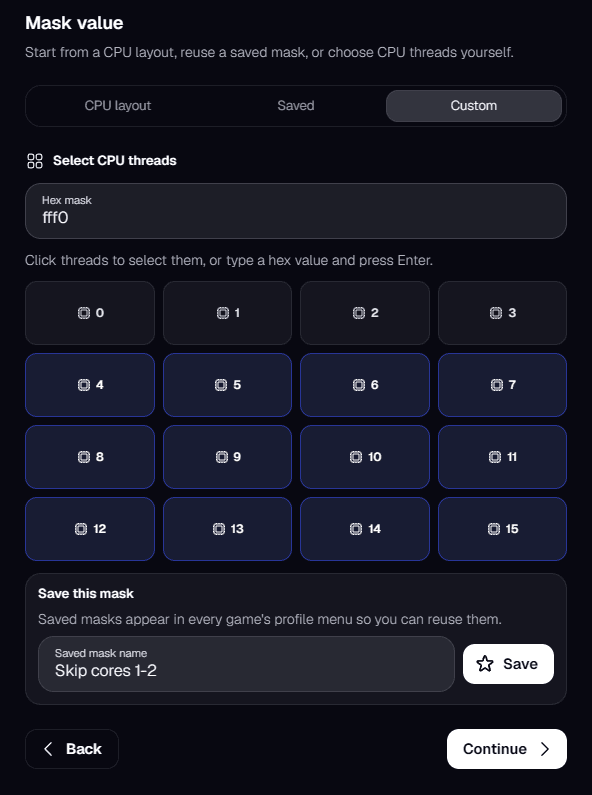
- If you chose IQON Recommended, keep "Recommended (Auto)" or pick one of the other recommended masks for your CPU. If you chose Custom, pick "Affinity mask" or "CPU set", then select the CPU threads the game can use. You can start from a CPU layout, reuse a saved mask, or pick threads yourself.
- Review your choice and select "Save override". It applies the next time the game launches.
An affinity mask keeps the game on the selected CPU threads only. A CPU set makes them the game's preferred threads, and Windows keeps more flexibility for scheduling and power management.
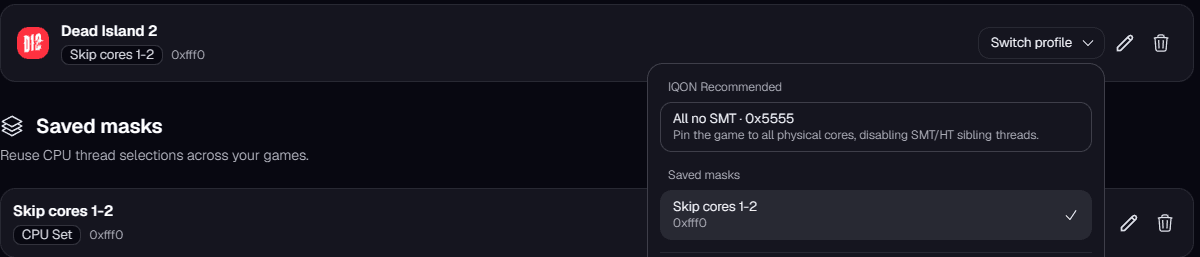
Switching, editing, or removing an override
The pencil icon reopens the setup with the current choices filled in. The trash icon removes the override, and Live Boost goes back to picking a profile automatically. Removing an override doesn't delete any saved mask it used.
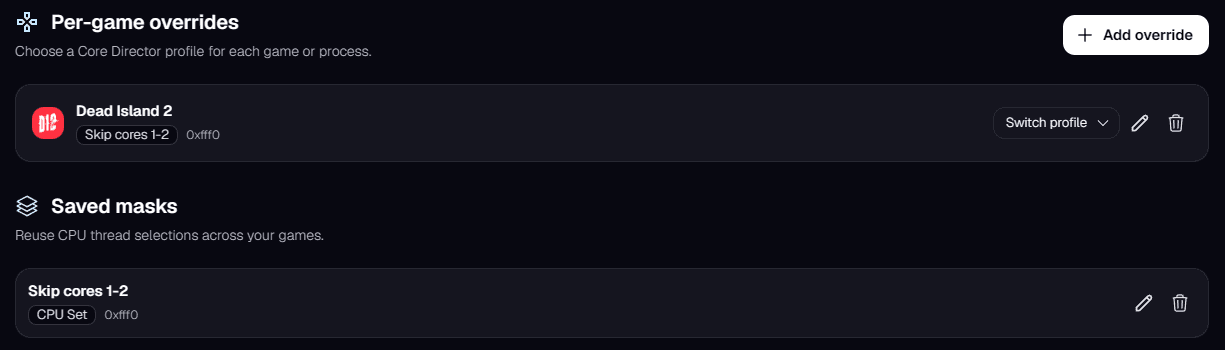
Saved masks
Use the pencil icon on a saved mask to rename it, or the trash icon to remove it. Removing a saved mask doesn't change overrides that already use it.
CPU activity and Processes
Custom Background Control presets
Tips
- Test your game after saving an override, and remove it if you notice lower frame rates, stutter, or input lag.
- Don't use a third-party affinity tool alongside an override. They'll compete over which cores the game uses.
- Saved masks and overrides are independent. Removing one doesn't delete or change the other.

