
TrademarkTrademark
Services
En savoir plus
Entreprise
IQON App
July 3·Updated July 11

Live Boost: Automatic Game Optimization

TL;DR
Live Boost detects supported games, applies Core Director profiles (using affinity masks and CPU sets), pauses non-essential services, and isolates background apps — automatically, and reverts cleanly on quit.
Live Boost automatically optimizes your games while IQON runs. No scripts, no manual steps — Live Boost kicks in the moment a supported game launches and reverts cleanly when you quit. It only runs while IQON is open or in the tray, and it is included with the IQON subscription.[VIDEO: 60–90s Live Boost walkthrough — setup wizard → dashboard boosting a live game]
  • Detects supported games — monitors running processes while IQON is open or in the tray.
  • Applies optimizations automatically — no scripts, no manual steps; the moment a game launches, Live Boost kicks in.
  • Removes them when you quit — optimizations are reversed cleanly when the game closes.
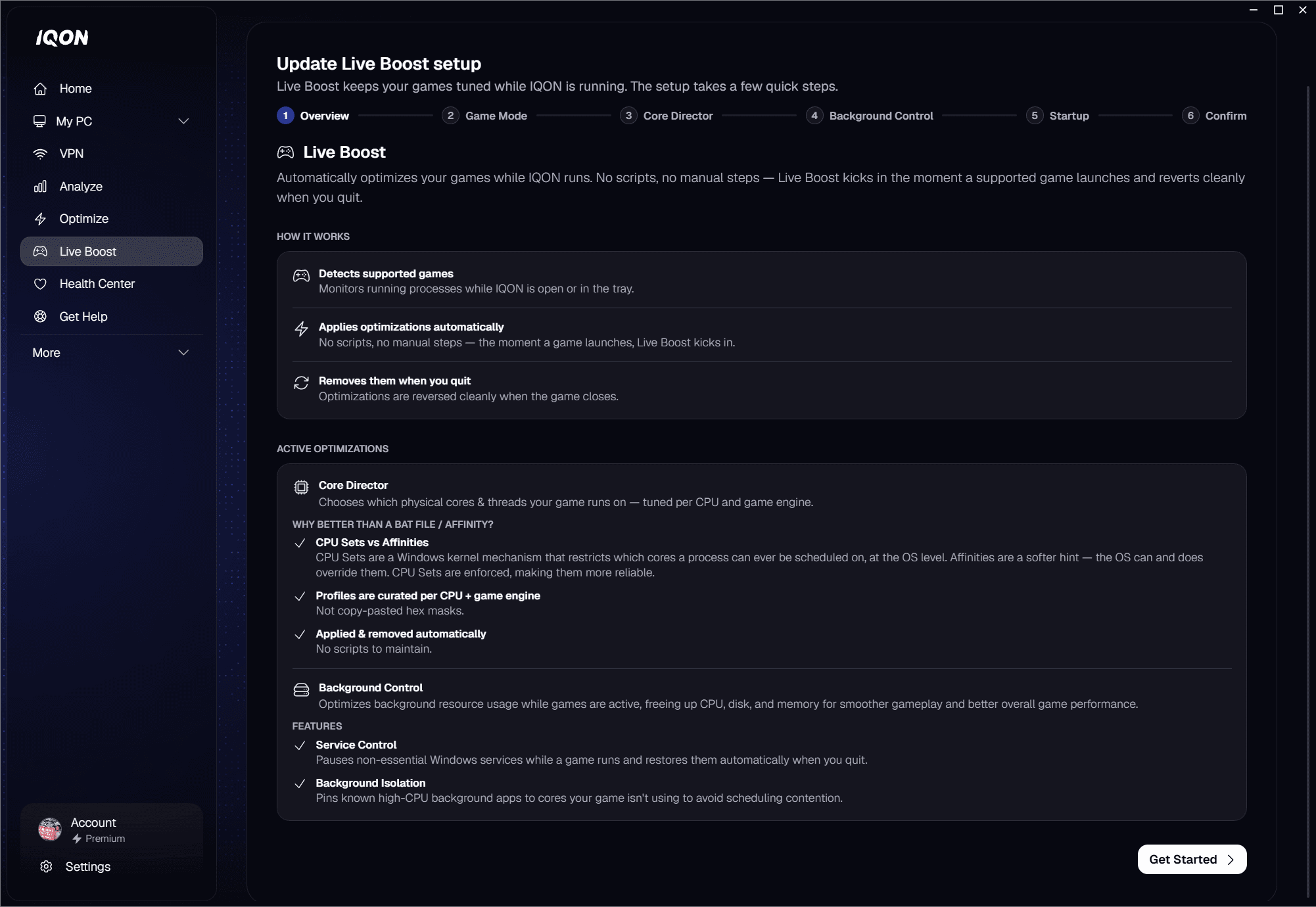
Live boost setup overview
The first time you open Live Boost, a short setup wizard walks you through the choices below. You can re-run setup at any time from the dashboard.Windows Game Mode and Core Director can fight over CPU resources, especially on some AMD chips. Live Boost works best with Game Mode turned off. If Game Mode is enabled, the wizard offers Disable Game Mode and Continue without disabling. If you proceed with Game Mode on, Live Boost reliability may be reduced.Core Director chooses which physical cores & threads your game runs on — tuned per CPU and game engine. Pick how it should run:
  • Automatic (Recommended) — boost most games automatically the moment they launch. IQON picks the best profile per title; no BAT files or scripts required.
  • Manual only — only boost games where you have set up a custom Core Director profile.
  • Off — do not apply any Core Director profile to any game.
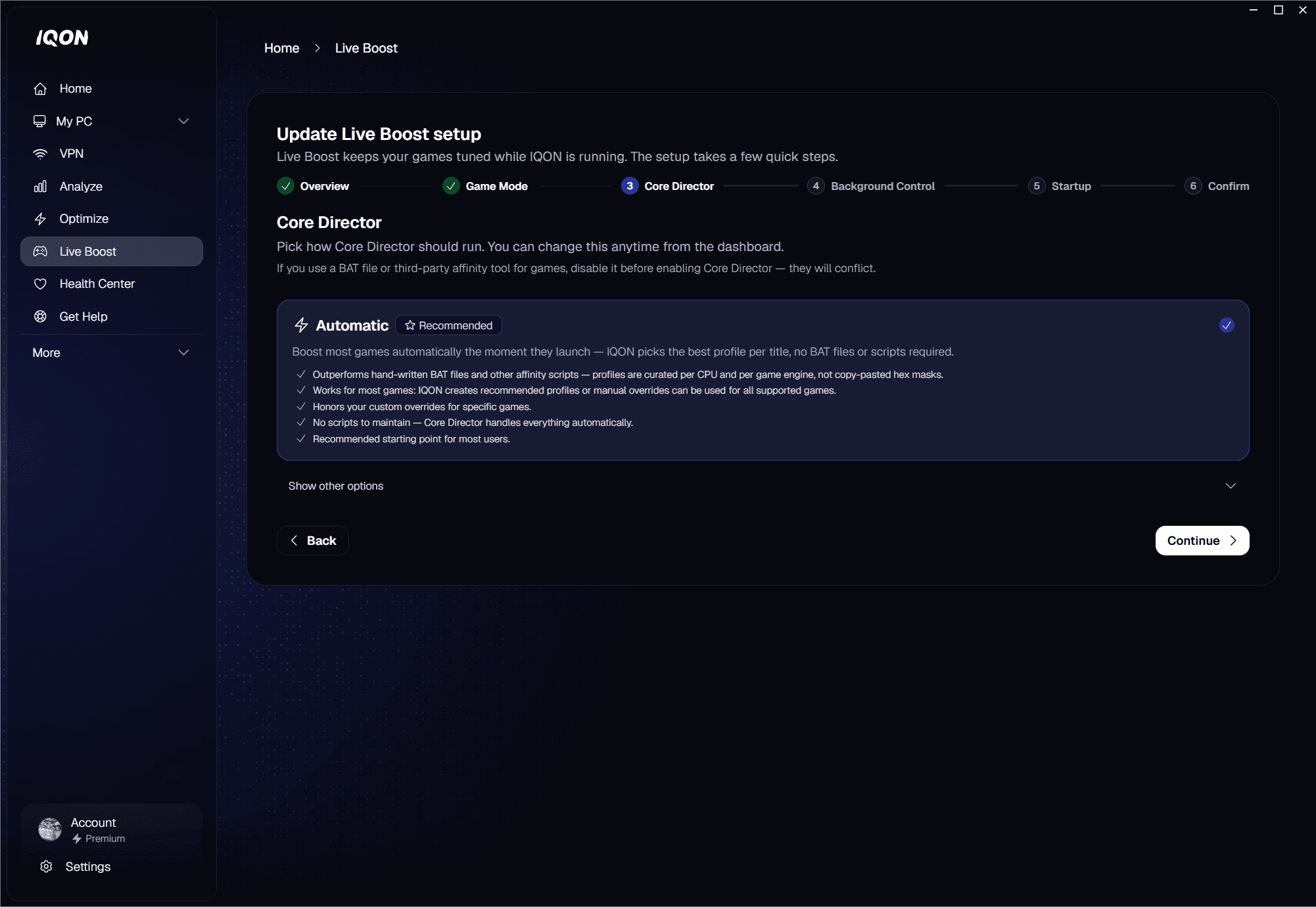
Core Director mode picker with Automatic selected
An affinity mask is a hard constraint on which logical processors Windows may schedule the game's threads on — Windows will not run them outside the mask. A CPU set is a preferred set of logical processors; Windows can use the rest when it needs to. Profiles are curated per CPU and per game engine and applied & removed automatically, so there are no scripts to maintain.If you use a BAT file or third-party affinity tool for games, disable it before enabling Core Director — they can conflict.Background Control optimizes background resource usage while games are active, freeing up CPU, disk, and memory for smoother gameplay and better overall game performance. It has two features: Service Control and Background Isolation.Service Control pauses non-essential Windows services while a game runs and restores them when you quit. Choose Standard or Off.
  • Standard — search indexing, print spooler, telemetry, and per-user CDP/OneSync/BcastDVR services are stopped on game start; IQON restores everything on game exit. Best balance of input latency and system responsiveness while gaming.
  • Off — Live Boost leaves Windows services running. Core Director will still optimize your game.
Background Isolation pins known high-CPU background processes and the host processes of a curated set of Windows services to cores your game is not using, so they cannot steal scheduling from your game. CPU sets are released automatically when the game exits. Choose a preset:
  • Standard (Recommended) — standard services (search, telemetry, background transfers, maps, media network sharing, link tracking) plus standard background apps (browsers, chat and collaboration, music and media players, cloud sync, common app updaters), Adobe and creative cloud helpers, and peripheral / RGB / vendor tray apps (Logitech, Razer, Corsair, SteelSeries, ASUS, MSI, NZXT, Elgato).
  • Creator — everything in Standard plus more services (connected devices, store and app deployment, network discovery, smart-card, misc UX / device services, per-user CDP/OneSync/BcastDVR) and the creator / streaming process set (OBS, Streamlabs, XSplit, NVIDIA Broadcast, Elgato capture, Wave Link, Krisp), plus screen capture helpers (ShareX, Greenshot, Snipping Tool) and audio-active comms helpers.
  • Extreme — everything in Creator plus the most services (Windows Update, Delivery Optimization, Update Orchestrator, Medic, TrustedInstaller) and the security / AV / EDR set (Microsoft Defender / Defender for Endpoint, Malwarebytes, Avast, AVG, Bitdefender, ESET, Sophos, SentinelOne, Trend Micro).
  • Off — Live Boost never pins services or processes to the isolation mask.
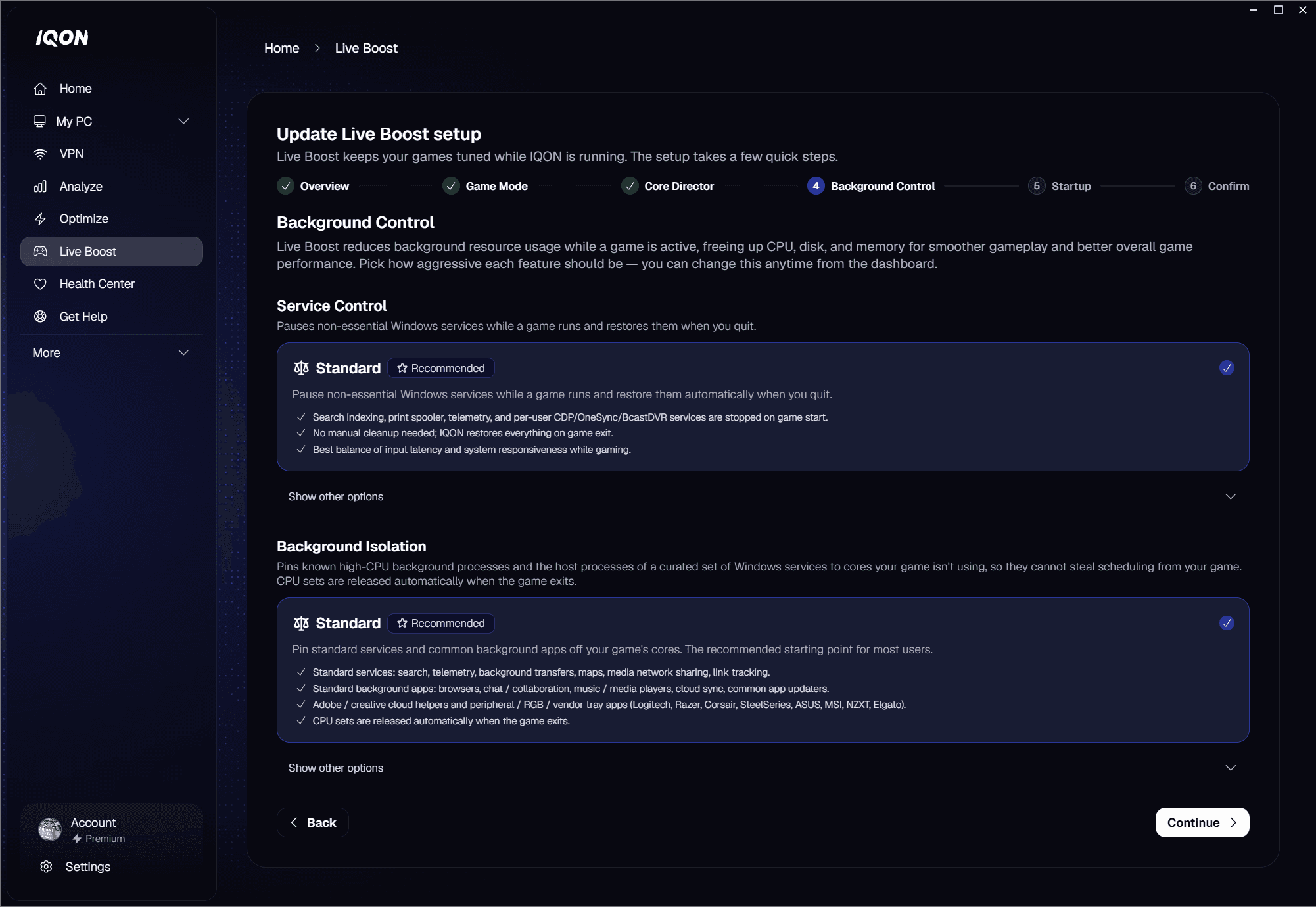
Background Control presets with Standard selected
Live Boost only runs while IQON is running. Launching at startup keeps it ready the moment you start gaming. The startup step lets you enable Launch IQON at startup and Start minimized to the tray. If both are already enabled, the wizard confirms and lets you continue.The final step shows the Ready to activate Live Boost summary: your Core Director mode, Service Control setting, Background Isolation preset, Game Mode compatibility status, and whether Launch at startup and Start in tray are enabled. Click Activate Live Boost to finish.After setup, the Live Boost dashboard shows everything Live Boost is doing in real time:
  • Master switch — turn Live Boost on or off. The header shows Ready to boost your games when enabled and Live Boost is paused when disabled.
  • Active games — every supported game Live Boost detects, with a Boosted or Detected tag. Boosted rows show whether Core Director applied the profile via Affinity Mask or via CPU Set.
  • Service Control status — N services paused while gaming, with the list of stopped services. Restored automatically when the game exits.
  • Background Isolation status — N background processes isolated, with the active preset shown as a sub-line. Pinned processes are released automatically when the game exits.
  • Supported games — installed games with a Core Director profile, tagged Custom Override, IQON Recommended, or Custom + Recommended.
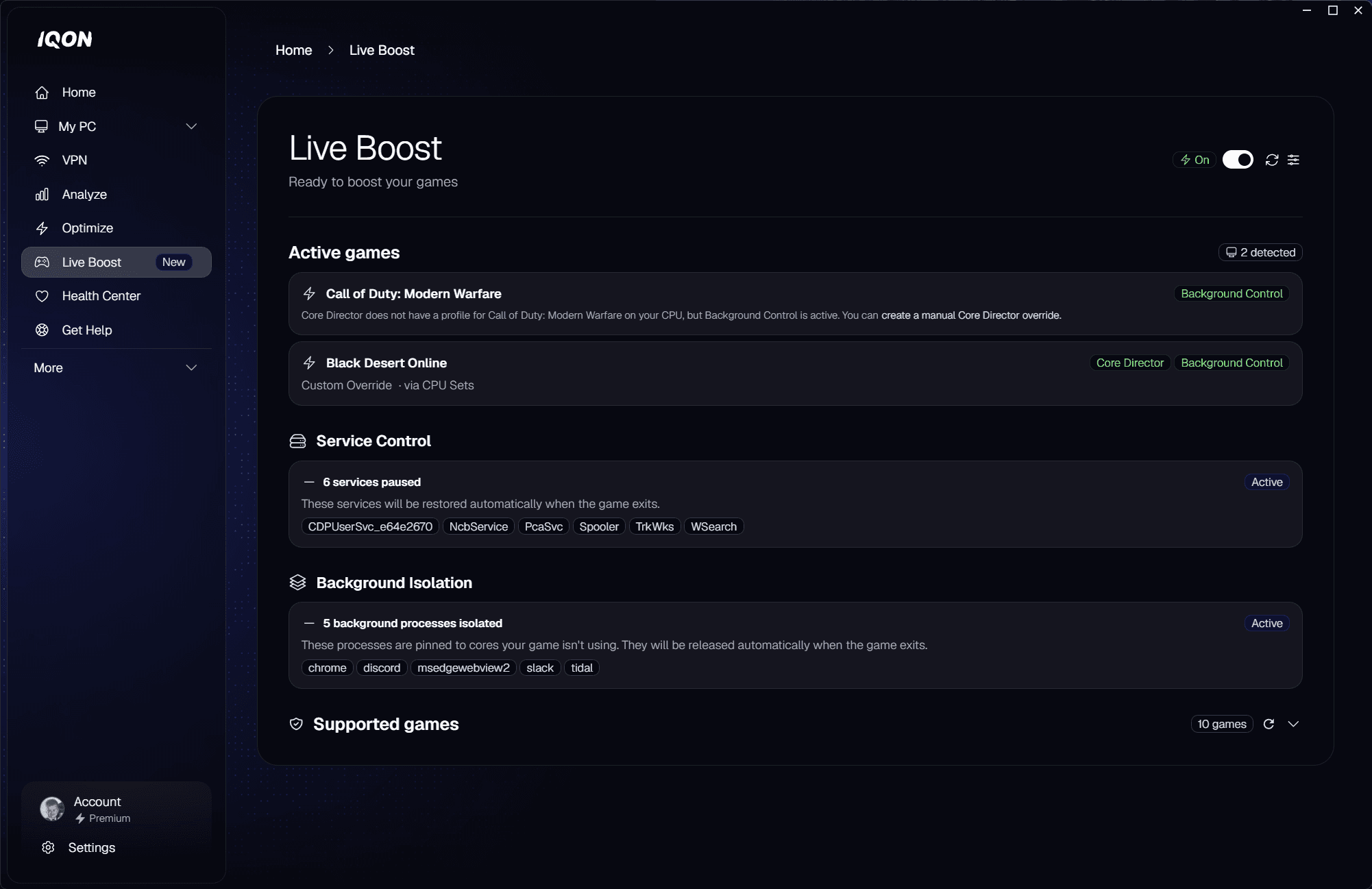
Live boost dashboard with Black Desert Online boosted
The Advanced section lets you create per-game Core Director overrides. Click Add override to open the wizard.
  • Select game — pick from the installed games list, or choose Other (running process)… to target an arbitrary executable by path.
  • Profile choice — IQON Recommended uses the curated profile for that game; Custom lets you choose the mask kind and value.
  • Mask kind — Affinity Mask (hard restriction) or CPU Set (preference).
  • Mask value — enter the cores or hex mask, then confirm to save the override.
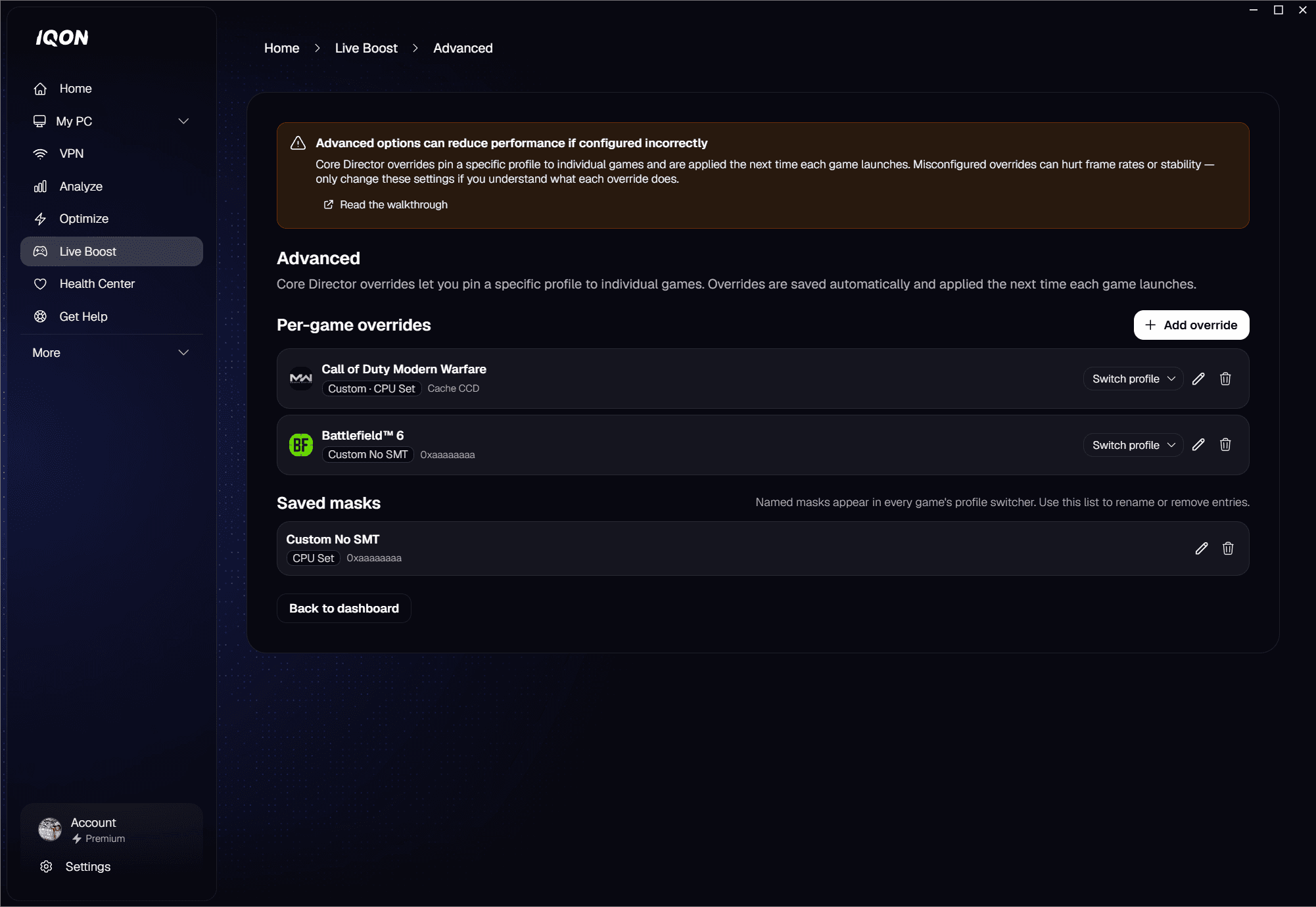
Saved masks let you reuse a custom profile across multiple games. Open the Switch profile menu on any override row and choose Save this mask… to give it a name. Saved masks appear in every game's profile switcher. For a complete walkthrough of every option on this screen — selecting a game, choosing between IQON Recommended and a custom mask, and saving reusable masks — see the Live Boost Advanced guide.
Advanced overrides list with one row expanded to show Switch profile menu