

What the Advanced screen is for
- You want one specific game to always use a particular profile.
- The automatic profile isn't ideal for a game and you want to pin a better one.
- You want to fine-tune which cores a game uses, or build your own custom profile.
- You want to reuse the same custom profile across several games without rebuilding it each time.
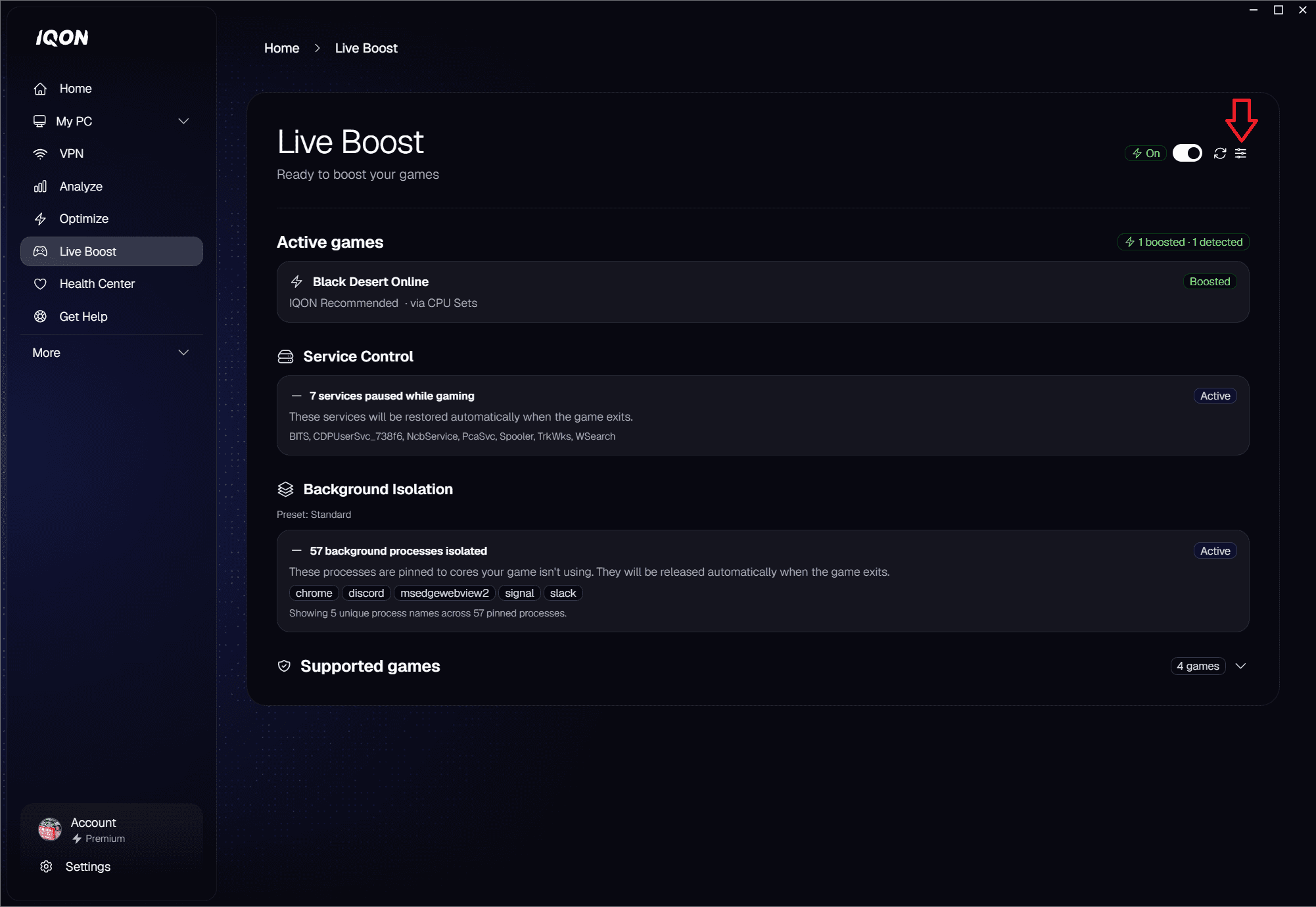
Getting to the Advanced screen
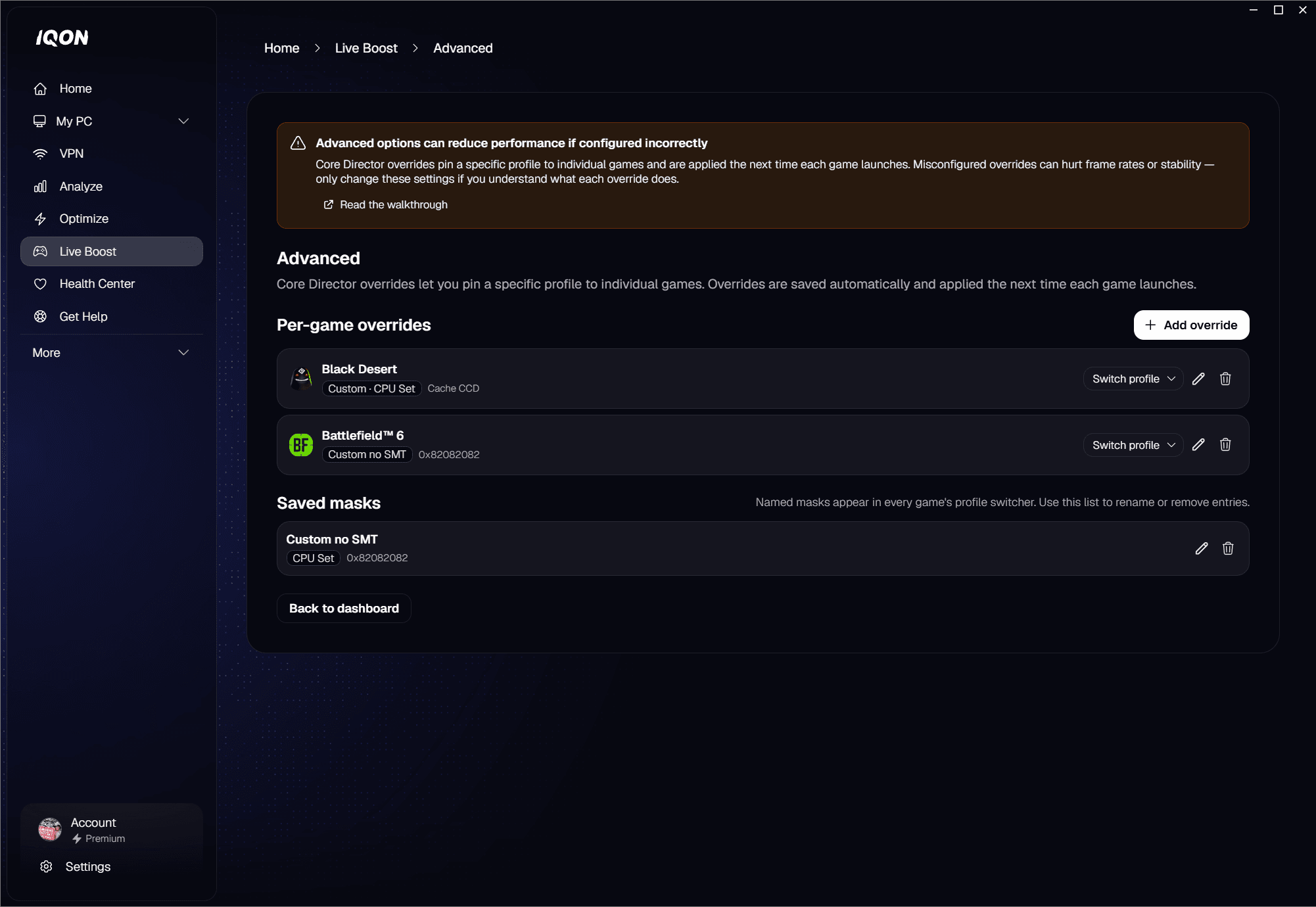
- Per-game overrides — a list of every game you've pinned a specific profile to.
- Saved masks — the reusable custom profiles you've named, ready to apply to any game.
Per-game overrides
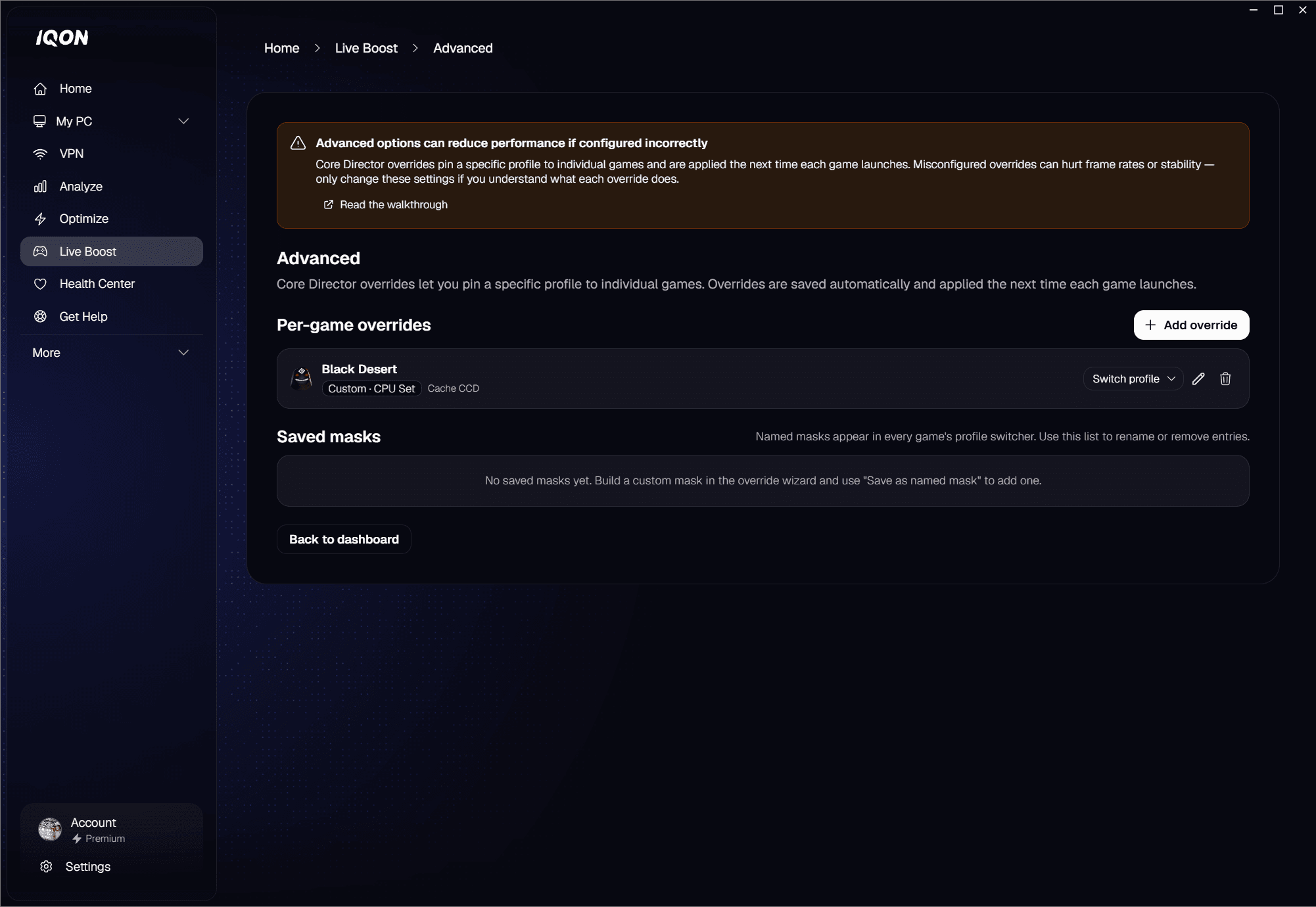
Adding an override
- Select a game — pick from your installed library, or choose Other (running process) if you want to target a tool or game IQON doesn't recognize.
- Choose a profile — IQON Recommended to keep the curated profile for that game, or Custom to build your own.
- If you picked IQON Recommended, optionally pin a specific non-default option from the curated list. Otherwise, choose Affinity Mask or CPU Set for your custom mask.
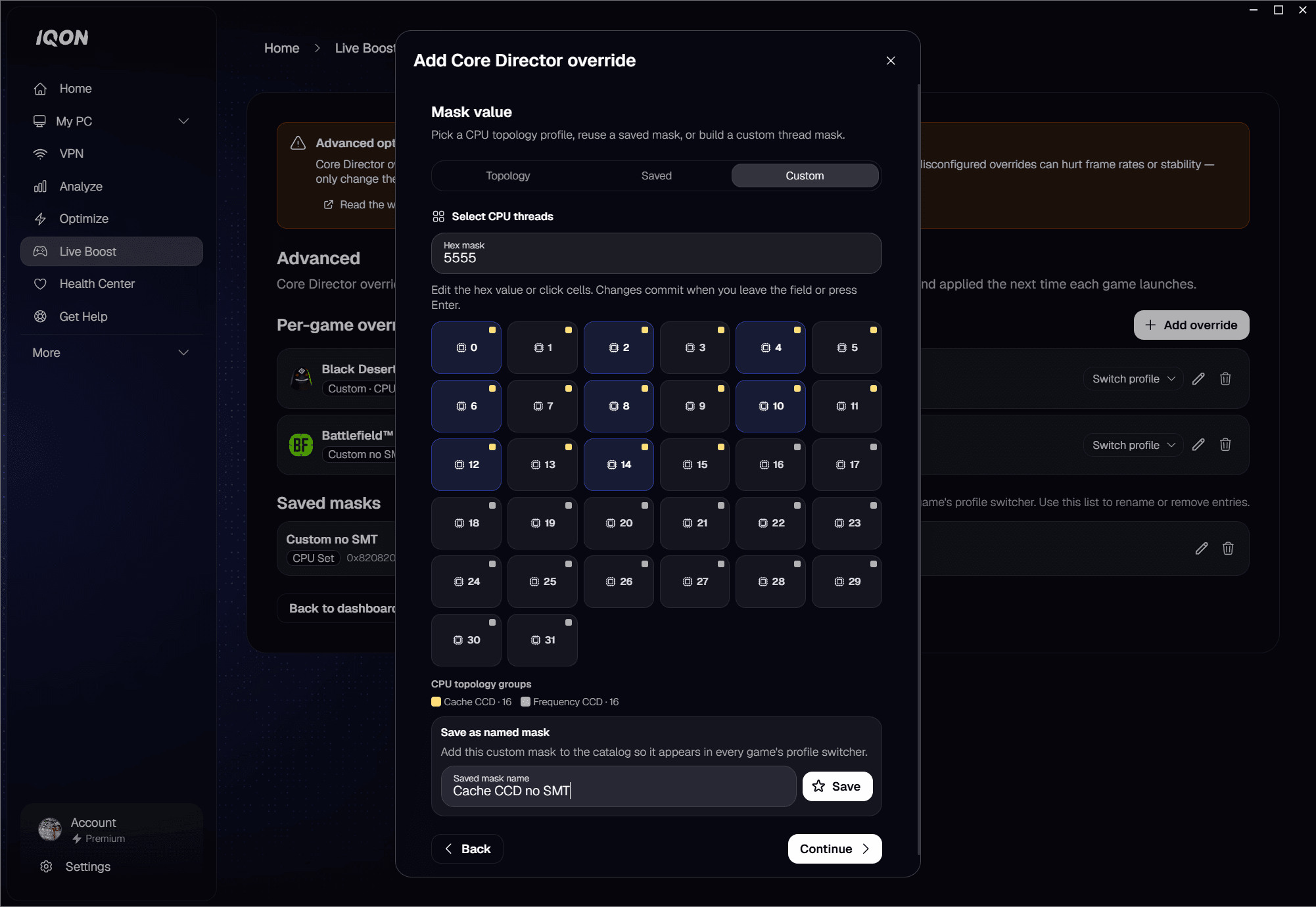
- Enter the mask — pick the cores you want the game to use, or paste a hex value.
- Confirm — review your selection and click Save override. The new profile takes effect immediately.
If you don't want to add an override yet, click the trash icon on an existing row to remove it and go back to the automatic profile for that game.
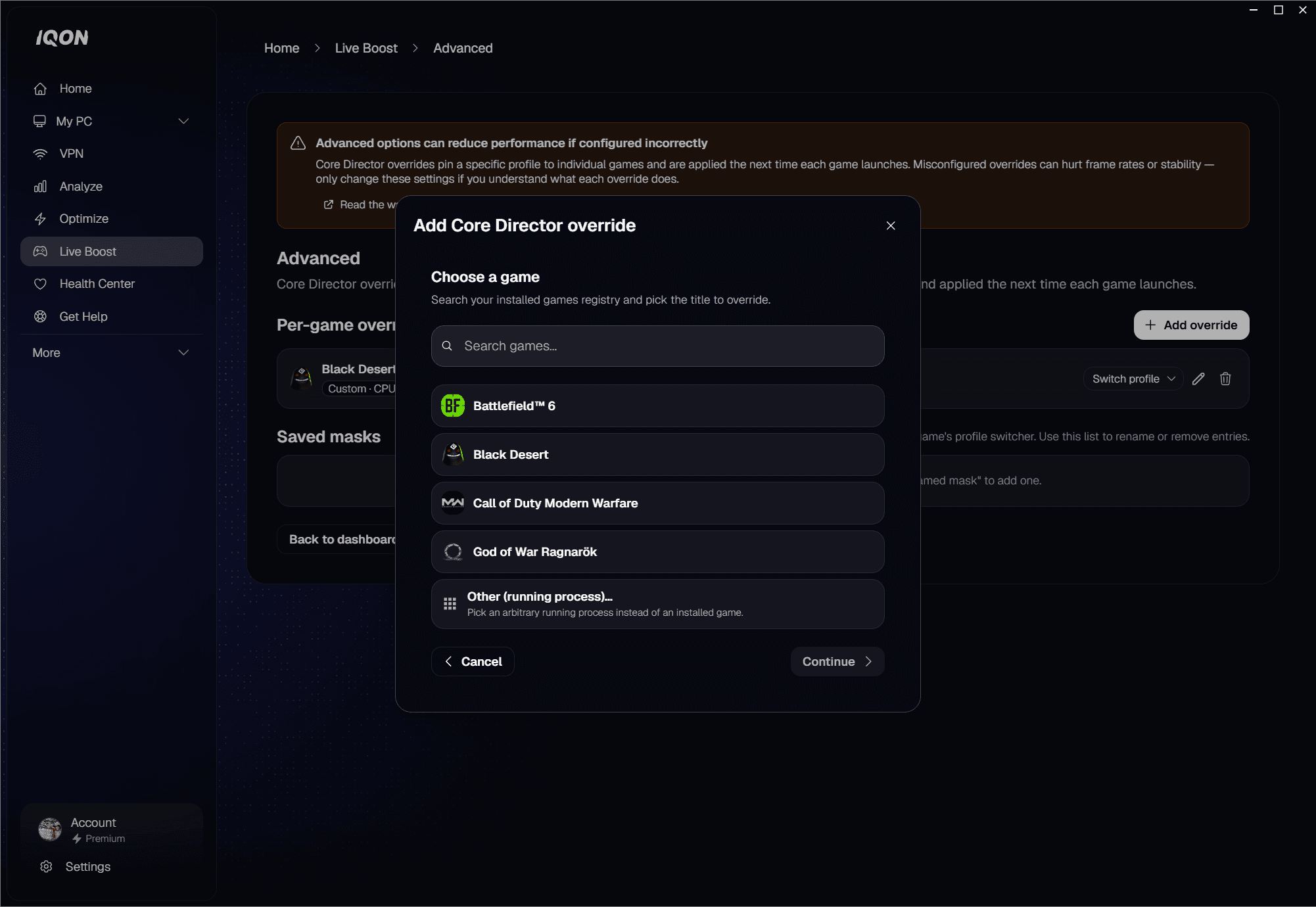
Switching an override's profile
- IQON Recommended — the curated profiles for that game, with a check mark on whichever one is active.
- CPU topology — the core groups your CPU exposes (e.g. Performance cores, Efficiency cores).
- Saved masks — your named custom profiles (see the next section).
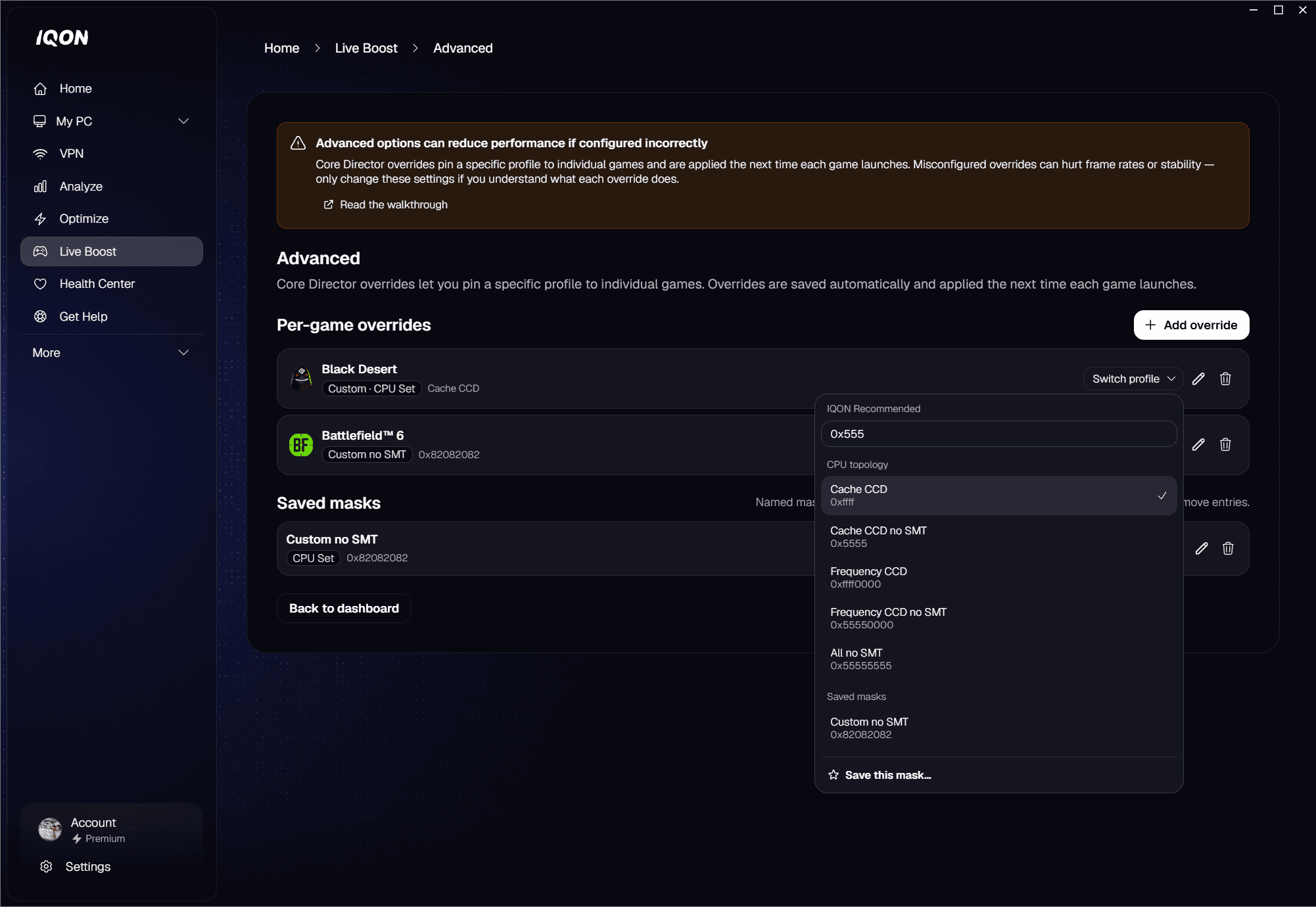
Editing or removing an override
Saved masks
Saving a mask from an override
Renaming or removing a saved mask
Common tasks in plain language
"I want one specific game to always use the same profile"
"I want to try a few profiles on one game"
"I built a custom profile I like — how do I use it on other games?"
"I want to go back to automatic for a game"
Tips and good to know
- Changes here are saved and applied automatically. There's no separate Save button on the main Advanced screen — anything you do takes effect right away, with no relaunch.
- Affinity masks are stronger than CPU sets. If you can, use an Affinity mask — the OS enforces it, while a CPU set is only a preference. The override wizard lets you pick whichever you need.
- Don't use a third-party affinity tool alongside an override — they can fight over which cores the game ends up on. Pick one.
- Saved masks are independent from overrides. Removing an override doesn't delete the saved mask it used, and removing a saved mask doesn't change any override that referenced it.
- If a game isn't on the installed-games list, you can still target it with Other (running process) at the start of the wizard.

